Get Started with Insightech
Account Setup with Insightech
How Insightech Works
Insightech Platform Walkthrough
Uncover Insights with Insightech
Manage your Account
Implement Your Tracking Code
Profile Settings & Cross-Domain Tracking
Manage Users and Roles
Set Up Conversion and Revenue Tracking for Reports
Reset Your Account Password
Submit a ticket
Platform User Guides
Dashboards & In-Platform AI Assistants
Insightech AI and Connecting via MCP
An Overview of Your AI MCP Connection
Your Insightech MCP User Guide & Key Concepts
How To Setup - Claude MCP Connection
How To Setup - Microsoft Copilot MCP Connection
How To Setup - Gemini Enterprise MCP Connection
How To Setup - OpenAI (ChatGPT) MCP Connection
Troubleshooting Your MCP Connection
Security & Privacy MCP Connection Information
Session Replays & On-Page Analytics
What are Session Replays?
Saving Notes, to Share Insights with the Team
What are Click Map Reports?
What are Scrolling Heat Maps?
Understanding Rage Clicks
Page Analysis Reports Explained
Form Analytics Explained
Funnels Explained
Pathing Reports Explained
Filters and Segments
Using Filters & Segments to Compare Audiences / Behaviours
Create your First Conversion Segments
Point and Search with Insightech
CSS Selectors Explained & How to Use Them
Saving Custom Reports
Notes & Insights
Data Layers Explained
Insightech Chrome Extension
Error Monitoring
Integrations
Insightech and AB Tasty
Insightech and Adobe Target
Insightech and Convert.com
Insightech and Insider One
Insightech and Optimizely
Insightech and Shoplift
Insightech and VWO
Insightech and Intelligems
Insightech and LaunchDarkly
Insightech and Dynamic Yield
Insightech and Magnolia
Optimisation Playbook
Analysing Website Abandonment with Funnels
Find and Recreate Customer Support Issues
Track Website Interactions with Funnel Analysis
Find and Analyse Dynamic Content
Analyse Website Content Engagement
Frequently Asked Questions
Privacy and Security
- All Categories
- Platform User Guides
- Notes & Insights
- Notes & Insights Overview
Notes & Insights Overview
Creating a note is a quick way to bookmark a moment of interest in a replay and easily share insights with your team. You can save a note just as a moment in a replay, or with the aggregated analytics reports applied to the replay.
Types of Notes
Moments
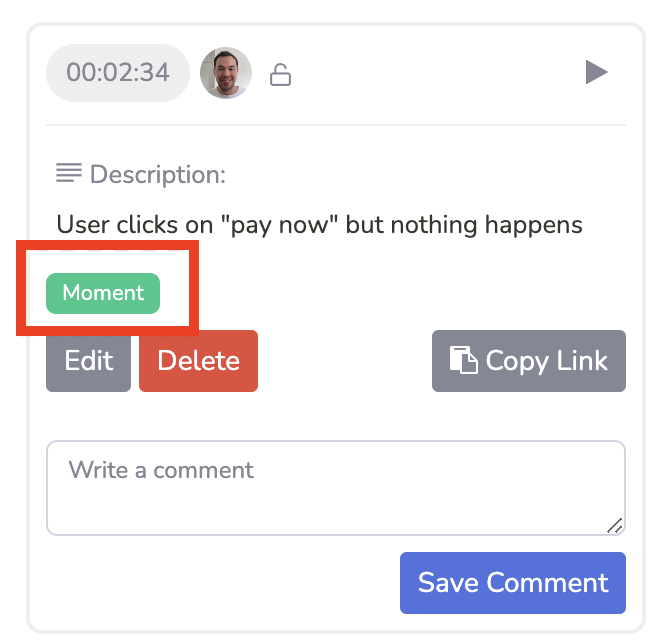
Moments are simply a way of bookmarking something interesting within a replay to share with the team, or save for your own use later. It could be a user who receives an error message, or a user who is rage clicking on a button. Moments save the specific point in the replay, so that when someone accesses the note, they can jump to the exact moment where the note was saved.
Moments will be saved with a tag of "Moment".
Analytics Reports
Within a session replay, you can use the Analytics tab to overlay aggregated data, to visually see how all users interacted with that particular page. These reports include clickmaps, form analysis, and scrolling heatmaps.
When you save a note while an analytics report is selected, the note will save the replay exactly as is - with the report selected, and the correct date range, segments, and URL filters applied.
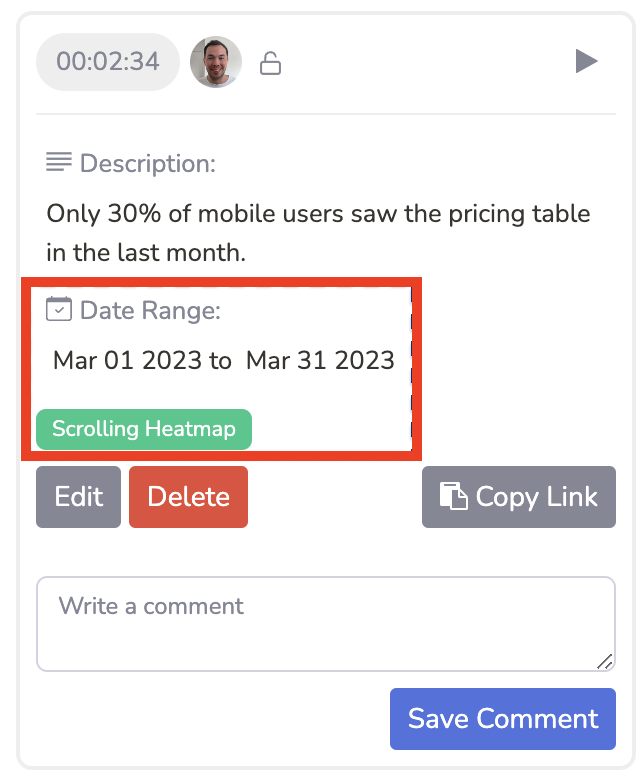
The note will have a tag with the name of the report, e.g. "Clickmap" or "Scrolling Heatmap". It will also show the date range the report is filtered on.
Save your Note
To save your note:
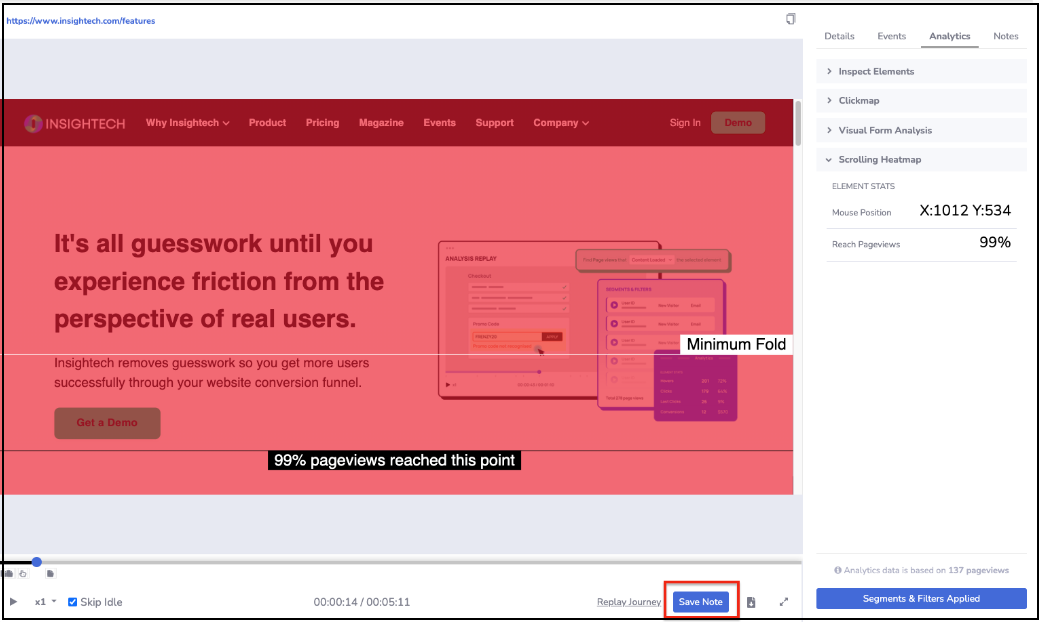
- Pause any replay where you'd like to save the note. If you're saving the note with an Analytics report, make sure the correct report is selected in the Analytics tab, with the desired segments and filters.
- Click the Save Note at the bottom of the session replay
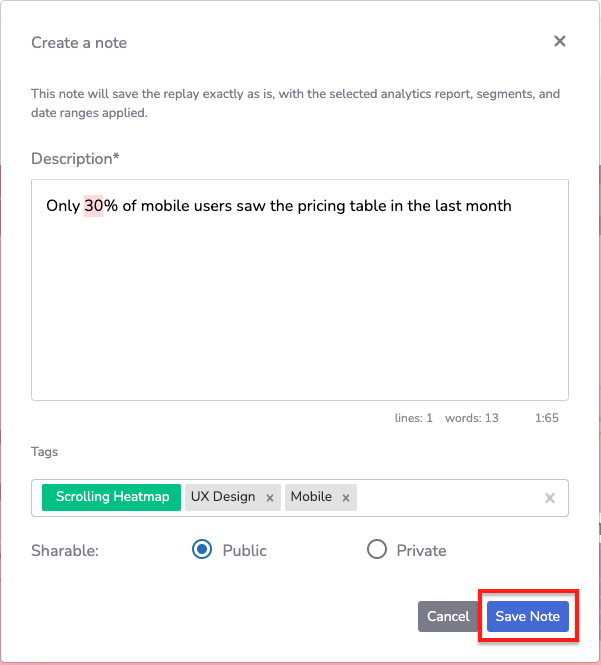
- Write down comments and findings in the description
- Give your notes relevant tags. The note will automatically be tagged with the type of note it is (Moment, Inspect Elements, Clickmap, Form Analysis, or Scrolling Heatmap).
- Click Save Note to complete the note
Sharing Your Note
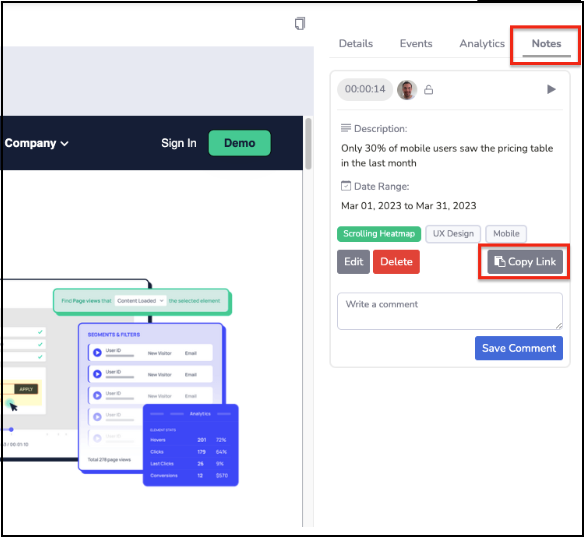
Once you save your note, you will see it in the "Notes" pane of the replay.
The note will show the description, tags (including the note type). If the note is an Analytics report, it will also display the date range.
Click the Copy Link button to generate a shareable URL that you can copy and paste to your team. When someone opens the link, they are taken to the replay where the note was saved. If the note was an Analytics report, the report will be overlayed with the correct date range, segments, and URL filters in place.
Accessing Past Notes
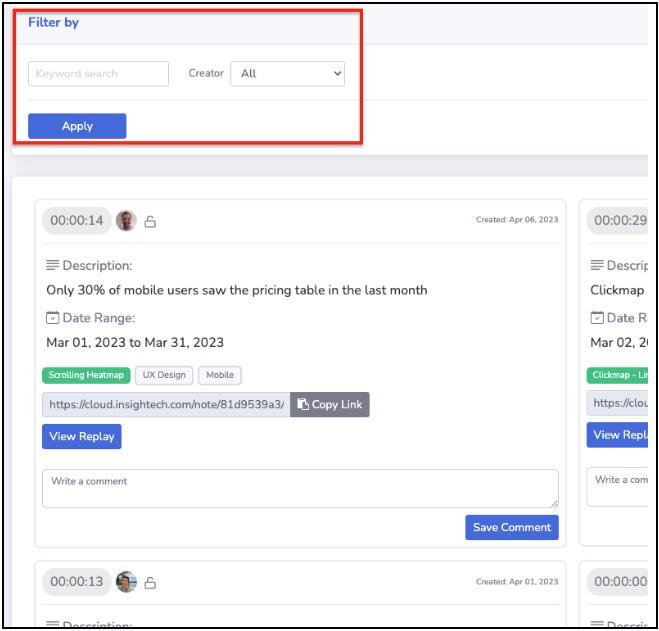
All notes saved are accessible in the Notes menu in the side navigation.
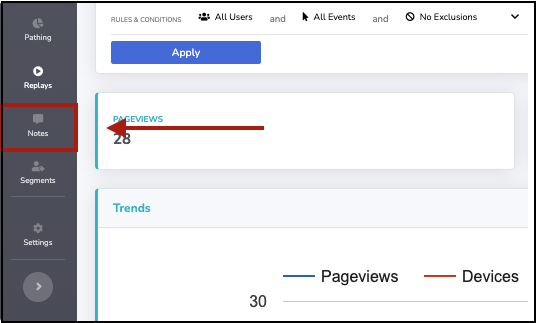
From here, you can search by keyword (including tags), or by the the user who created the note.