Insightech and VWO

Overview
Integrating VWO with Google Tag Manager (GTM) enables you to push your VWO campaign data to Insightech and other analytics tools.
NOTE: If the deprecated VWO synchronous SmartCode is installed on your webpage, the integration will not work.
To push VWO data to Insightech, you need to create data layer variables to push every test and variation data as events through GTM tags.
This is a one-time integration process to avoid setting up separate data layer variables and custom dimensions for every campaign. Setting up this integration is a four-step process:
- Step 1 - Create Data Layer Variable
- Step 2 - Create Firing Rules
- Step 3 - Create GTM Tags
- Step 4 - Enable GTM Integration in VWO
Step 1 - Create Data Layer Variable
To get started with GTM integration, log in to your GTM account and create the following four data layer variables with the default value as 0. These variables are used in later steps to create tags and define triggers for events to execute.
- CampaignId
- VariationId
- CampaignName
- VariationName
CampaignId
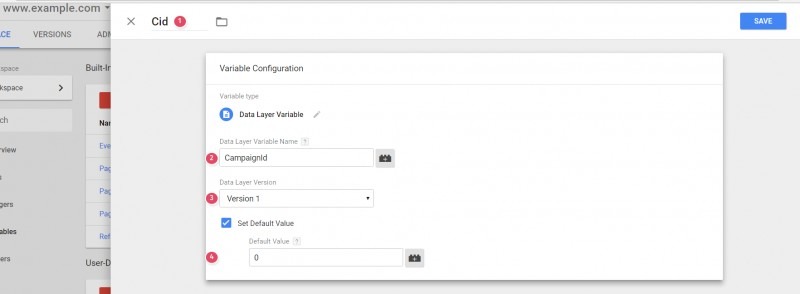
For the campaignId field, configure the following:
- Title: Cid
- Data Layer Variable Name: CampaignId
- Data Layer Version: Version 1
- Set Default Value: Check the option, and then enter the value as 0 (zero)
VariationId
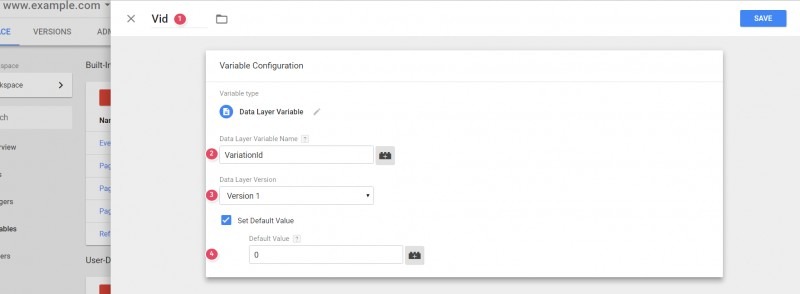
For the variationId field, configure the following:
- Title: Vid
- Data Layer Variable Name: VariationId
- Data Layer Version: Version 1
- Set Default Value: Select the option and enter the value as 0 (zero)
VariationName
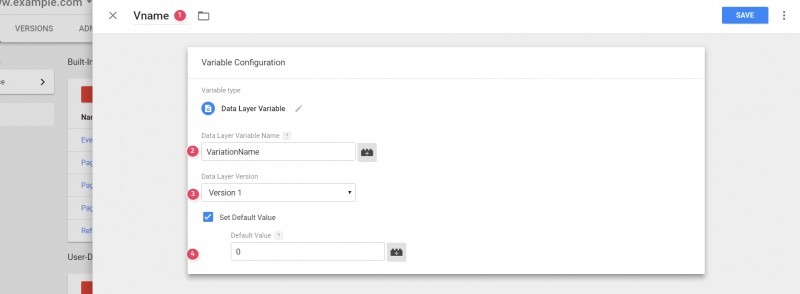
For the variationName field, configure the following:
- Title: Vname
- Data Layer Variable: VariationName
- Data Layer Version: Version 1
- Set Default Value: Select the option, and then select the value as 0 (zero)
CampaignName
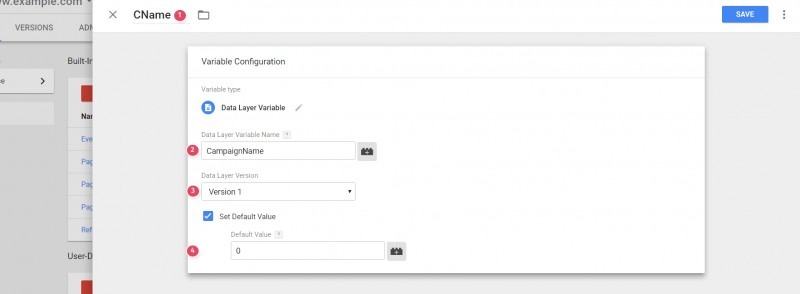
For the campaignName field, configure the following:
- Title: CName
- Data Layer Variable: CampaignName
- Data Layer Version: Version 1
- Set Default Value: Select the option, and then type the value as 0 (zero)
Step 2 - Create Firing Rules for the Event
Also known as Triggers, firing rules are conditions that evaluate to either fire or not fire an event to the tags. Create the following two event rules that will enable VWO to push campaign data to GTM.
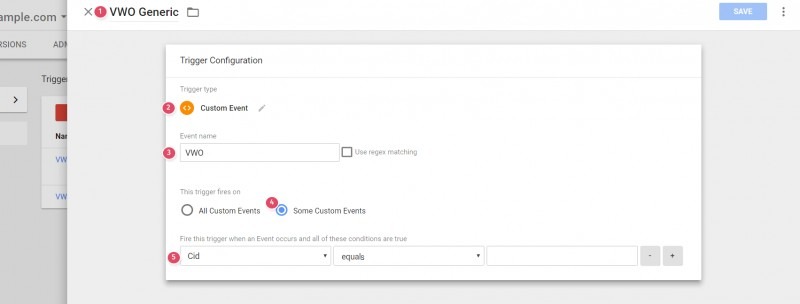
Trigger 1: VWO Generic
Create a firing rule for the Campaign ID data variable by configuring the following fields:
- Trigger Name: VWO Generic
- Trigger type: Custom Event
- Event Name: VWO
NOTE: This event is stored in VWO libraries and pushed when the GTM integration is enabled for the test.
- This trigger fires on: Some Custom Events
- For the next field, select the CampaignId variable (Cid), and then set the condition equals 0 (zero)
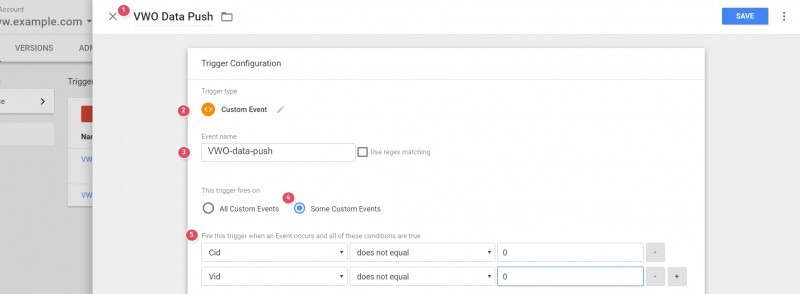
Trigger 2: VWO Data Push
Create another firing rule for the Campaign ID and Variation ID data variables by configuring the following fields:
- Trigger Name: VWO Data Push
- Trigger type: Custom Event
- Event Name: VWO-data-push
NOTE: Click the Custom Event textbox and wait for the options to appear. Now select the one you want.
- This trigger fires on: Some Custom Events
- For the next field, select the CampaignId (Cid) and VariationId (Vid) variables, and then set the condition as does not equal 0 (zero)
Step 3 - Create VWO GTM Tag
Tags are code snippets that finally push the data captured by the variables and fired by the triggers to your analytics tool, such as Google Analytics. To complete the process in the GTM dashboard, create the following two tags:
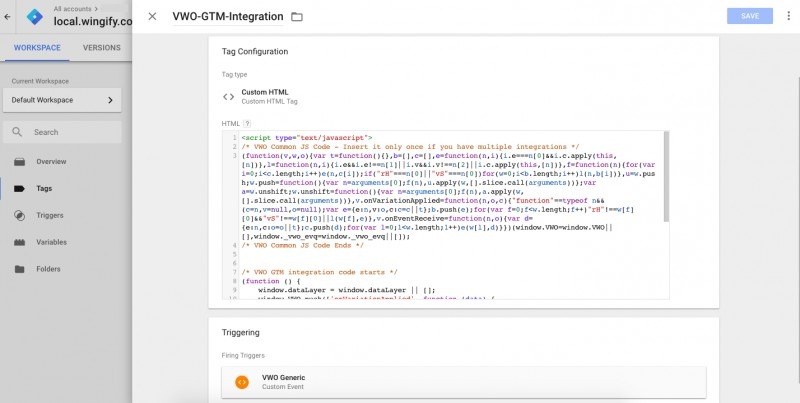
- Click Tags in the GTM dashboard, and then select New.
- Edit Tag Configuration, and then select the Custom HTML tag option.
- Enter the following custom code:
<script type="text/javascript">
  /* VWO GTM integration code starts */
  (function() {
    window.VWO = window.VWO || [];
    window.dataLayer = window.dataLayer || [];
    window.VWO.push(['onVariationApplied', function(data) {
      if (!data) {
        return;
      }
      var expId = data[1],
        variationId = data[2];
      if (typeof(_vwo_exp[expId].comb_n[variationId]) !== 'undefined' && _vwo_exp[expId].GTM) {
        window.dataLayer.push({
          "CampaignId": expId,
          "CampaignName": _vwo_exp[expId].name,
          "VariationId": variationId,
          "VariationName": _vwo_exp[expId].comb_n[variationId]
        });
        window.dataLayer.push({
          event: 'VWO-data-push'
        });
      }
    }]);
  })();
  /* VWO GTM integration code ends */
</script>
- Click the Triggering pane, and then select VWO Generic as firing triggers.
This is a one-time integration to push all your test data by using GTM tags. Once you have done this, all of your AB tests and experiments will be searchable in Insightech. Simply use the dataLayer search, to look for:
- CampaignId
- VariationId
- CampaignName
- VariationName
Step 4 - Enable GTM Integration in VWO
Now that you have configured GTM, you need to enable GTM integration from the VWO Dashboard.
NOTE: If you have multiple campaigns running on the same URL, events are fired for all campaign data.
Procedure
- Login to your VWO account.
- Go to TESTING and select a testing type, say A/B.
- On the FINALIZE page of the test, expand the Integrate with third-party products, and select the option Google Tag Manager.
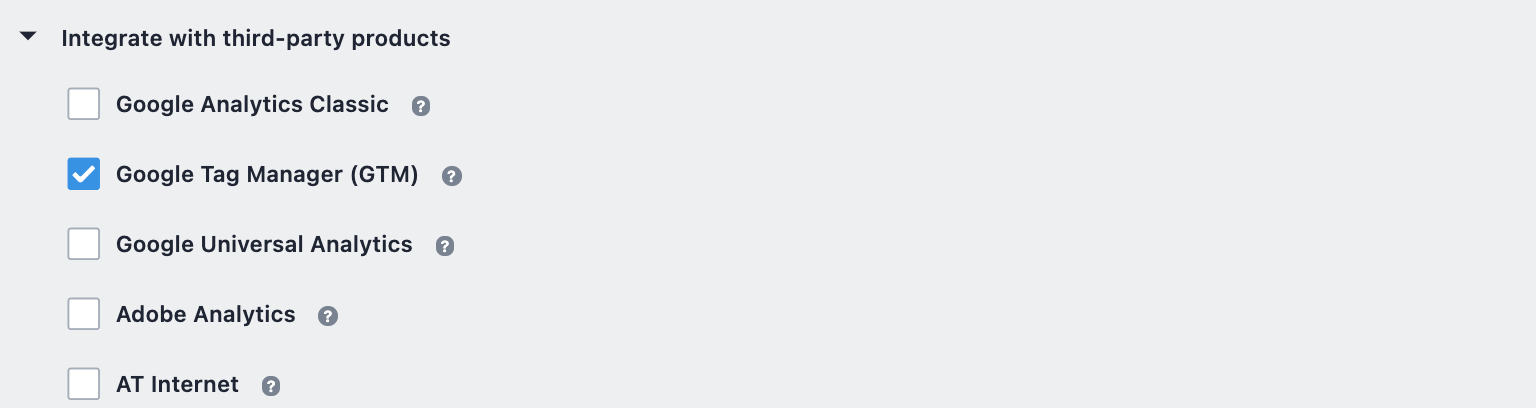
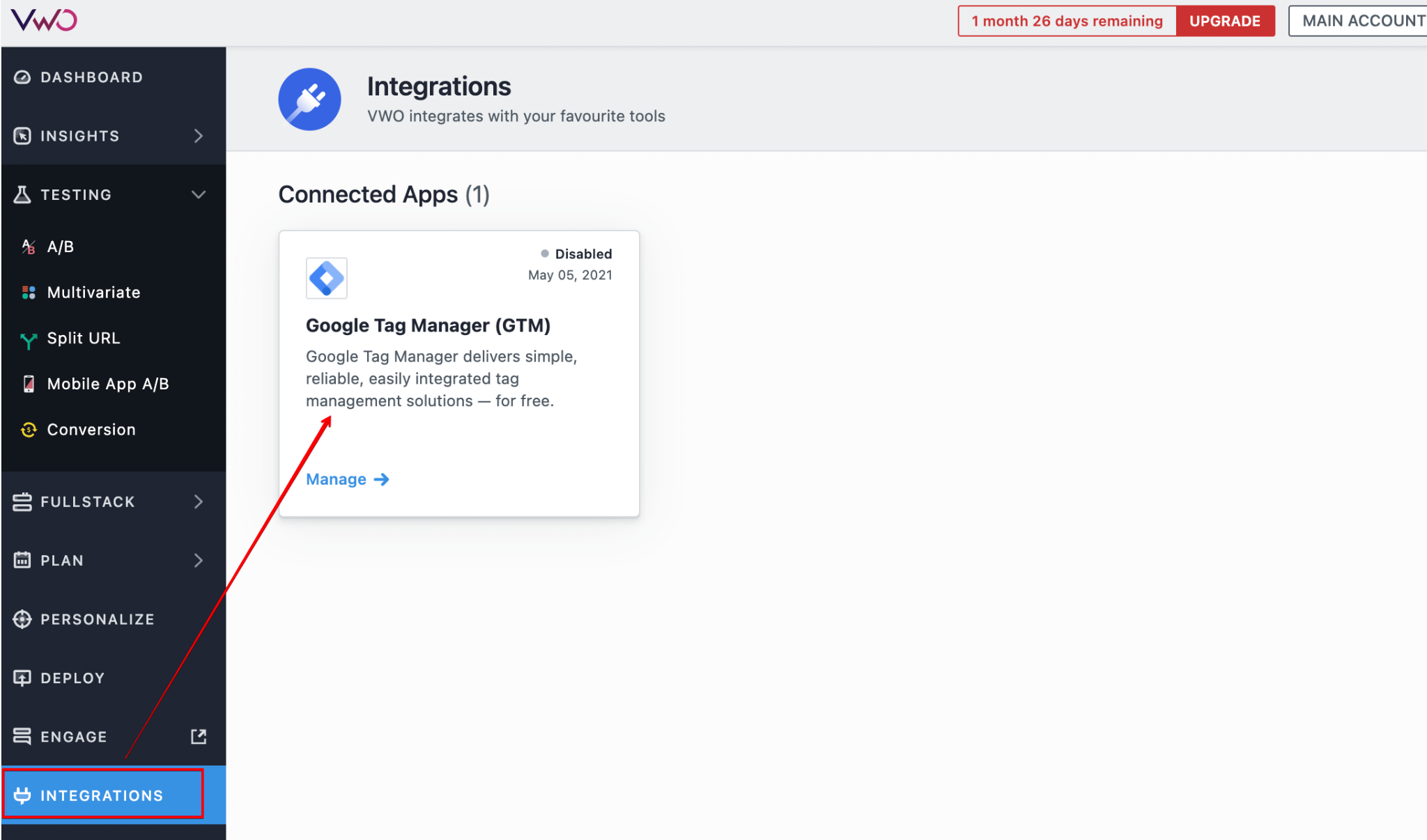
NOTE: The Google Tag Manager option appears only after you have enabled it in the INTEGRATIONS section.
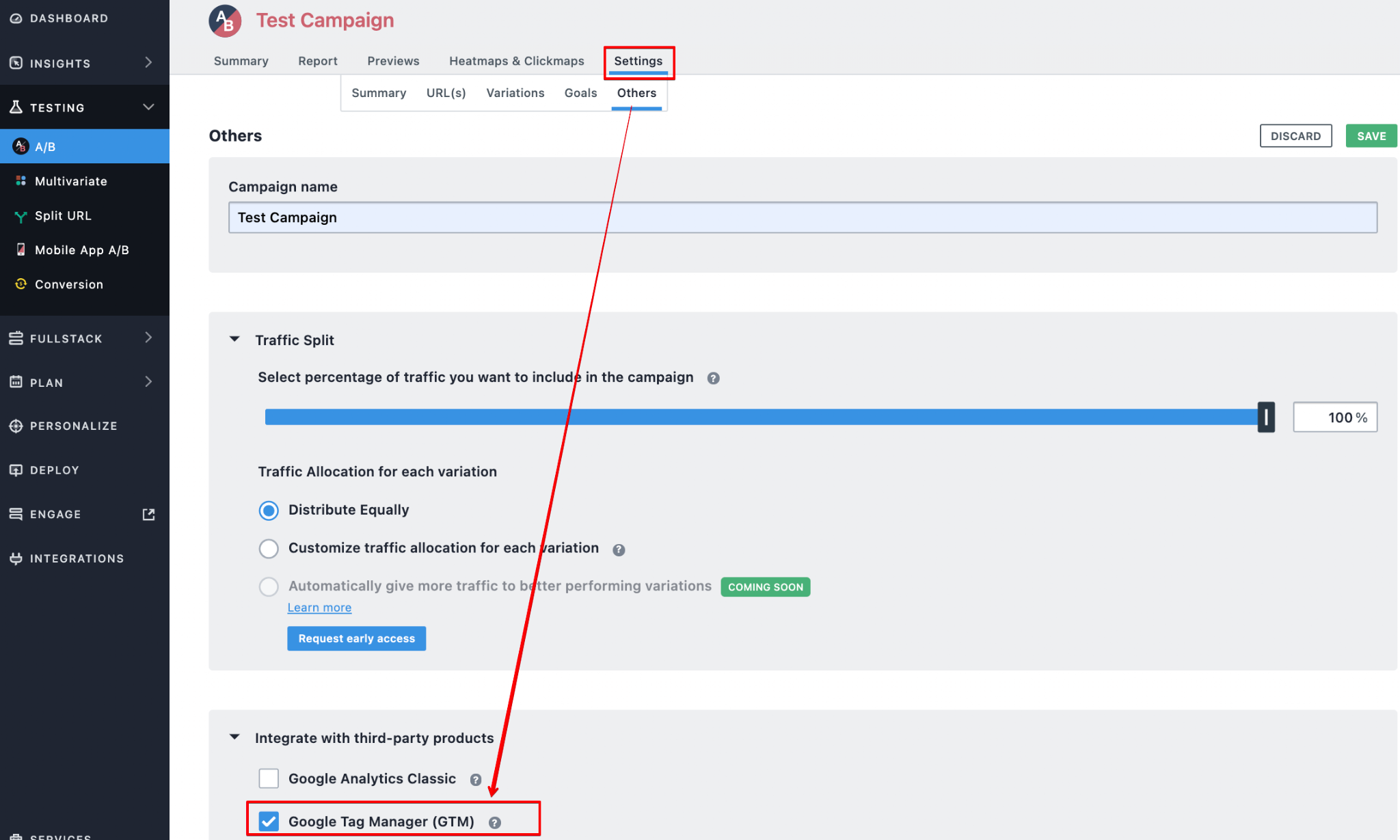
- If you want to enable the integration for a specific test, select the test and from Summary, click SETTINGS > OTHERS and select Google Tag Manager from the Integrate With Third-Party Products section.
Our list of integrations is updating weekly. If you want to know if we integrate with your preferred platform, please get in touch with us here.