Insightech and LaunchDarkly

Overview
LaunchDarkly is a leading feature management platform used to run A/B tests, feature rollouts, and targeted experiments. It controls what feature flag variations (experiences) each visitor sees, enabling teams to safely ship and measure changes.
This document explains how to integrate LaunchDarkly feature flag data with Insightech by pushing flag evaluation details into the website's dataLayer. Because Insightech captures all dataLayer events automatically, no additional Insightech configuration is required beyond the standard setup.
What This Integration Does
The integration automatically captures and sends LaunchDarkly flag evaluation data to your dataLayer whenever a visitor loads a page, allowing Insightech to capture the details of every experiment and feature flag the visitor was exposed to.
This includes:
- Flag Key - The unique identifier of each feature flag (acts as the campaign name)
- Flag Value - The variation the visitor received (e.g. 'control', 'Variant-a', 'true/false')
- Variation Index - Numeric index of the variation served (0 = first, 1 = second, etc)
- In Experiment - Whether the flag evaluation was part of a formal LaunchDarkly experiment
- Reason Kind - Why this variation was served (e.g. Rule_match, fallthrough, off)
This enables Insightech to:
- Unify your data: Combine A/B tests data with behavioral analytics in Insightech
- Create advanced segments: Build audiences based on specific tests, variants, and audiences
- Behavioural Attribution: Understand how tests impact downstream metrics like other on-page user engagement, AOV, and conversions
- Explore Successful / failed tests: Explore additional on-page behaviours and customer journeys to understand why tests succeeded/failed, to inform further improvements
Implementation Steps
1. Add the following code to your website via Google Tag Manager (GTM) as a Custom HTML tag, or directly into your website's header:
<script>
function pushLaunchDarklyToDataLayer() {
  if (!window.ldClient) {
    // Retry if LaunchDarkly client is not yet initialised
    setTimeout(pushLaunchDarklyToDataLayer, 100);
    return;
  }

  window.ldClient.on('ready', function() {
    var flags    = window.ldClient.allFlags();
    var flagKeys = Object.keys(flags);
    if (!flagKeys.length) return;

    var experiments = [];

    flagKeys.forEach(function(flagKey) {
      var detail = window.ldClient.variationDetail(flagKey, null);
      experiments.push({
        flagKey:        flagKey,
        flagValue:      String(detail.value),
        variationIndex: String(detail.variationIndex),
        inExperiment:   detail.reason ? !!detail.reason.inExperiment : false,
        reasonKind:     detail.reason ? detail.reason.kind : null
      });
    });

    window.dataLayer = window.dataLayer || [];

    // Event 1: one event per flag (for granular segmentation)
    experiments.forEach(function(exp) {
      window.dataLayer.push({
        event:            'launchdarkly_flag',
        ld_flagKey:       exp.flagKey,
        ld_flagValue:     exp.flagValue,
        ld_variationIndex: exp.variationIndex,
        ld_inExperiment:  exp.inExperiment,
        ld_reasonKind:    exp.reasonKind
      });
    });

    // Event 2: consolidated event with all flags
    window.dataLayer.push({
      event:        'launchdarkly_initialized',
      ld_flags:     experiments,
      ld_flagCount: experiments.length
    });
  });
}

pushLaunchDarklyToDataLayer();
</script>
Understanding the DataLayer Events
This integration pushes two types of events to the dataLayer:
Event 1: launchdarkly_flag
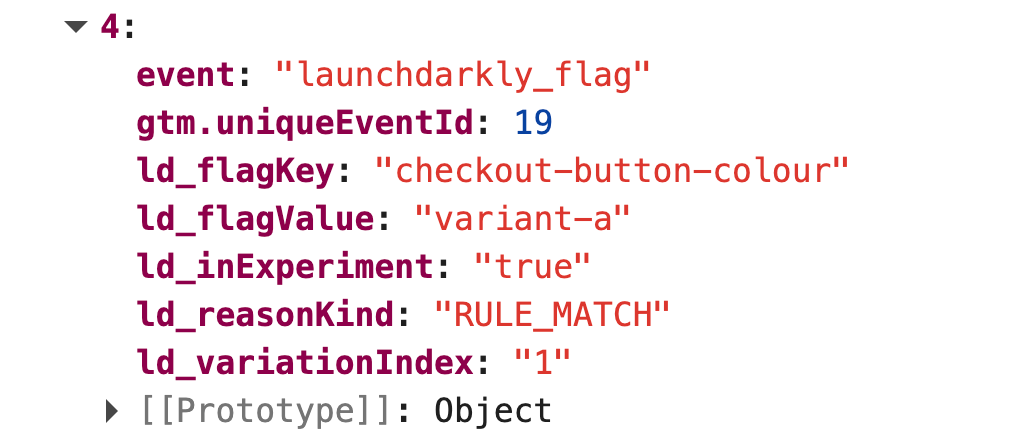
Fires once for each feature flag the visitor has been evaluated against. This allows granular segmentation by individual flag.
{
  event: 'launchdarkly_flag',               // Flag to show event fired
  ld_flagKey: 'checkout-button-experiment', // Experiment id
  ld_flagValue: 'variant-a',                // Specific variant ID
  ld_variationIndex: '1',                   // Variant Index Number
  ld_inExperiment: 'true',                  // Formal flag for Launch Darkly
  ld_reasonKind: 'RULE_MATCH',              // Why this variant was served
}
Field | Example Value | Description |
ld_flagKey | 'checkout-button-experiment' | The flag key — used as the campaign/experiment identifier |
ld_flagValue | 'variant-a' | The variation value served to this visitor (always a string) |
ld_variationIndex | '1' | Numeric index of the variation, as a string ('0' = first, '1' = second, etc.) |
ld_inExperiment | 'true' | 'true' if this evaluation is part of a running LD experiment, otherwise 'false' |
ld_reasonKind | 'RULE_MATCH' | Why this variation was served — see Reason Kind values below |
Reason Kind Values
The ld_reasonKind field is useful for filtering visitors who were deliberately targeted into an experiment versus those who received a default value:
Value | Meaning |
RULE_MATCH | Visitor matched a specific targeting rule — actively enrolled in the experiment |
FALLTHROUGH | Visitor reached the default rule (no specific rule matched) — may be in a percentage rollout |
TARGET_MATCH | Visitor was individually targeted by key |
OFF | Flag is turned off — visitor received the off variation |
PREREQUISITE_FAILED | A prerequisite flag was not met |
ERROR | Flag could not be evaluated — visitor received the fallback value |
Event 2: launchdarkly_initialized
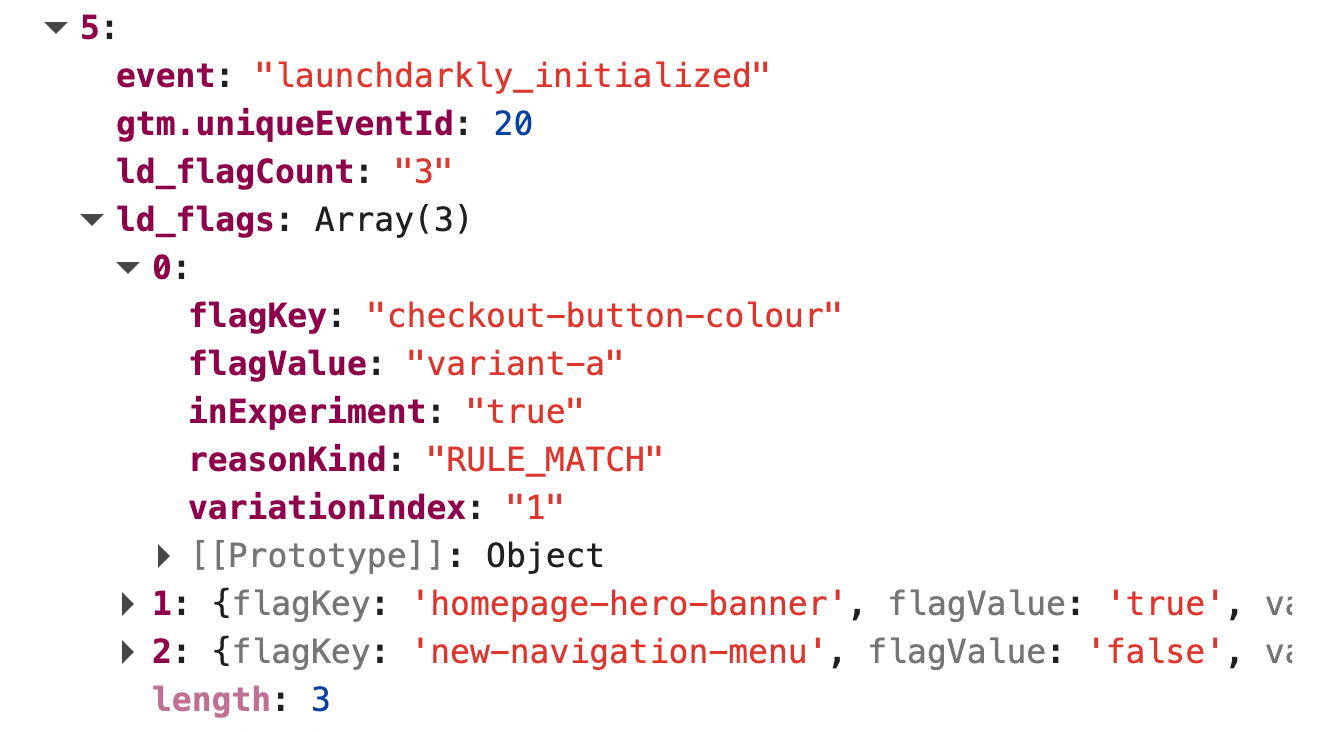
Fires once after all individual flag events have been pushed, providing a consolidated summary of all active flag evaluations for the visitor in a single event.
{
  event:        'launchdarkly_initialized',
  ld_flagCount: 3,
  ld_flags: [
    {
      flagKey:        'checkout-button-experiment',
      flagValue:      'variant-a',
      variationIndex: '1',
      inExperiment:   'true',
      reasonKind:     'RULE_MATCH'
    },
    {
      flagKey:        'homepage-hero-banner',
      flagValue:      'true',
      variationIndex: '0',
      inExperiment:   'false',
      reasonKind:     'FALLTHROUGH'
    }
  ]
}
Field | Example Value | Description |
ld_flagCount | 3 | Total number of flags evaluated for this visitor |
ld_flags | [...] | Array of all flag evaluation objects (same structure as Event 1) |
Setting Up / Configuring Insightech
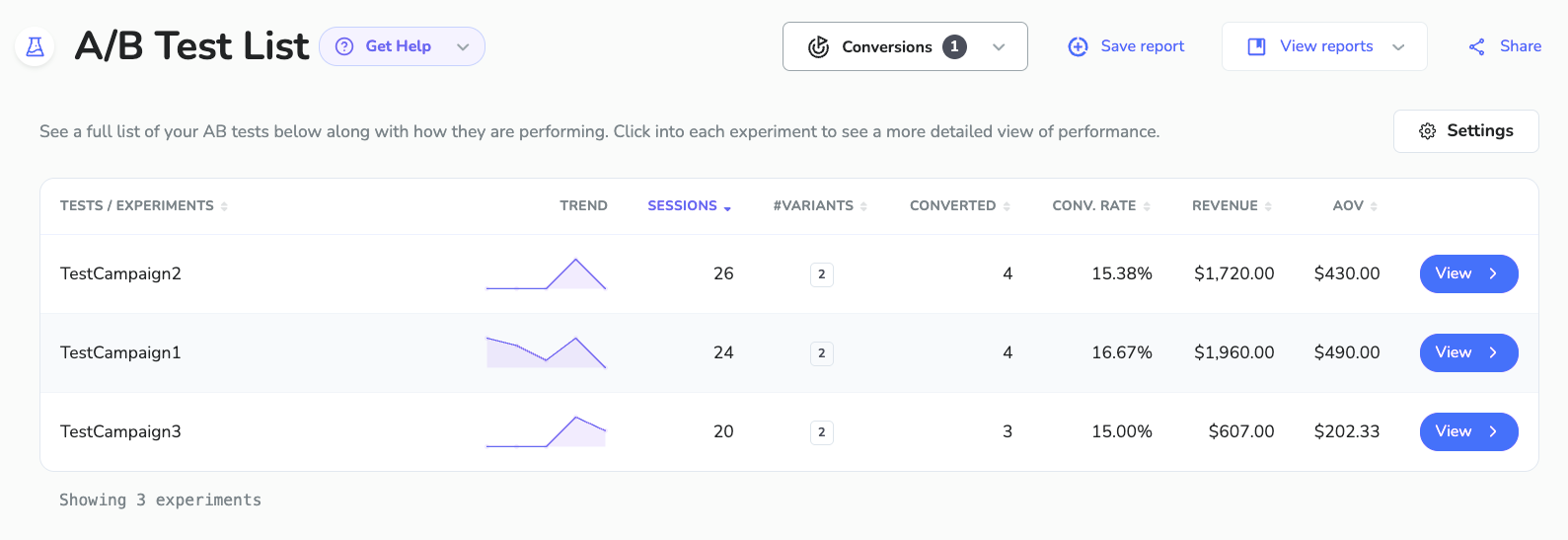
Once the integration is live, Insightech will automatically capture the dataLayer events being fired, and make these available in the AB Test report, accessible on your left menu.
Clicking into this menu, you will be prompted to search for your LaunchDarkly event name, and which attributes you want to use for your experiment campaign and variant details.
Once this has been set up, you will start to see your LaunchDarkly data populating the AB testing report, assuming that you have set up all of the steps above and also have tests that have been tracked using this method.
To Verifying the Integration Is Working
- Open your website in a browser
- Open the browser developer console (F12 or right-click → Inspect → Console)
- Type dataLayer and press Enter
- Look for launchdarkly_flag and launchdarkly_initialized events
- Verify the data structure matches the examples above and that ld_flagKey and ld_flagValue are populated
You should see single events like this for each flag that has been fired
And will also see a combined event with all flags initialized by LaunchDarkly
When DataLayer Events Are Not Appearing
Verify that LaunchDarkly client is loaded:
- Open browser console and type `window.ldClient`
- This should return an object.
- If undefined, the SDK is not installed or the variable name is different.
- If the variable name is different, check with your team and update window.ldClient to the appropriate variable to test again.
Check for JavaScript errors:
- Look for errors in the browser console
- Ensure the integration code is placed after LaunchDarkly loads
Increase retry timeout:
- If LaunchDarkly loads slowly, increase the timeout from 100ms to 200ms or 500ms
When There is No Test Data in Events
Check client-side flags are working
- Go into LaunchDarkly dashboard and check flag settings
- Confirm each flag has 'Make this flag available to client-side SDKs' enabled
- Confirm that flags are toggled on, and targeting rules are active
Check context/user targeting
- Check LaunchDarkly dashboard flag rules
- Confirm that what you're looking at actually satisfies these flag rules to be triggered
If Events Are Firing Multiple Times
Check for duplicate code:
- Ensure integration code is only added once
- Remove any duplicate script tags or inclusions