How To Setup - Microsoft Copilot MCP Connection
 Updated
by Josh Gray
Updated
by Josh Gray
This article runs through how to add Insightech as an agent in Microsoft Copilot, so your team can ask questions about your website analytics in plain language - sessions, conversions, page and form performance, errors, user journeys - directly from Copilot.
Who Is This Guide For
- Users - Anyone on your team who will use Copilot with Insightech
- Your Microsoft 365 Admin - This is only needed if your organization doesn't already have default access to Insightech's Agent out of the box
Time required: about 5 minutes per user. Most organizations need no admin step at all - Copilot ships with third-party marketplace agents allowed by default.
Before You begin
Requirement | Detail |
Microsoft 365 Copilot license | Copilot must be enabled for your account |
Insightech account | Every user needs their own Insightech login. Users see only the profiles their own account already has access to |
Data region | You'll need to know whether your Insightech data is hosted in the US or Australia — see Step 1 |
No access to Insightech's systems is required, and Insightech needs no access to your Microsoft 365 environment. Each user will then authenticate individually with their own Insightech credentials inside of Copilot, assuming they are already using both platforms. This connection simply allows them to use both together at the same time.
Your Connection Details
Insightech publishes one agent per data region in the Microsoft agent store. Use the one that matches where your data is hosted. See step 1 of User Steps below.
Region | Agent name in the store |
United States | Insightech Production (US) |
Australia | Insightech Production (AU) |
One agent per region. If your organization has Insightech data in more than one region, add both agents — repeat Steps 2 and 3 once per region.
User Steps - To Setup Copilot MCP Connection
Step 1 - Find your data region
In Insightech, go to Settings → Profile → Data location to see whether your data is stored in US or AU servers. This determines which agent you add below.
Step 2 - Add the Insightech agent
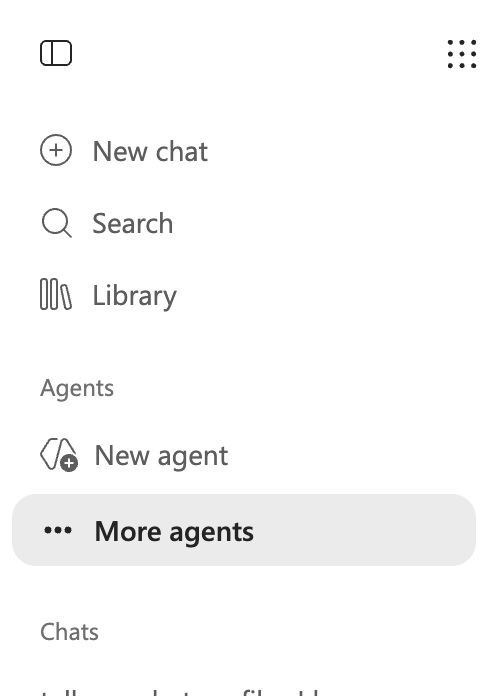
- In Copilot, go to the left navigation and click More agents.
- Search for Insightech in the agent store.
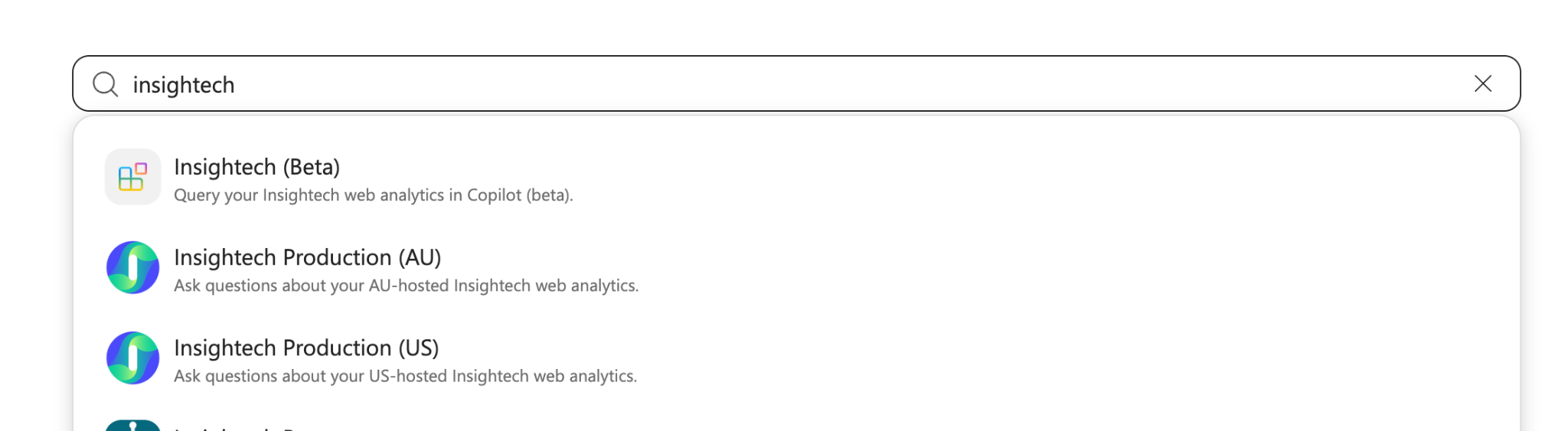
- Select Insightech Production (US) or Insightech Production (AU), based on the region from Step 1.
- Click Add. The agent now appears in your Copilot menu.
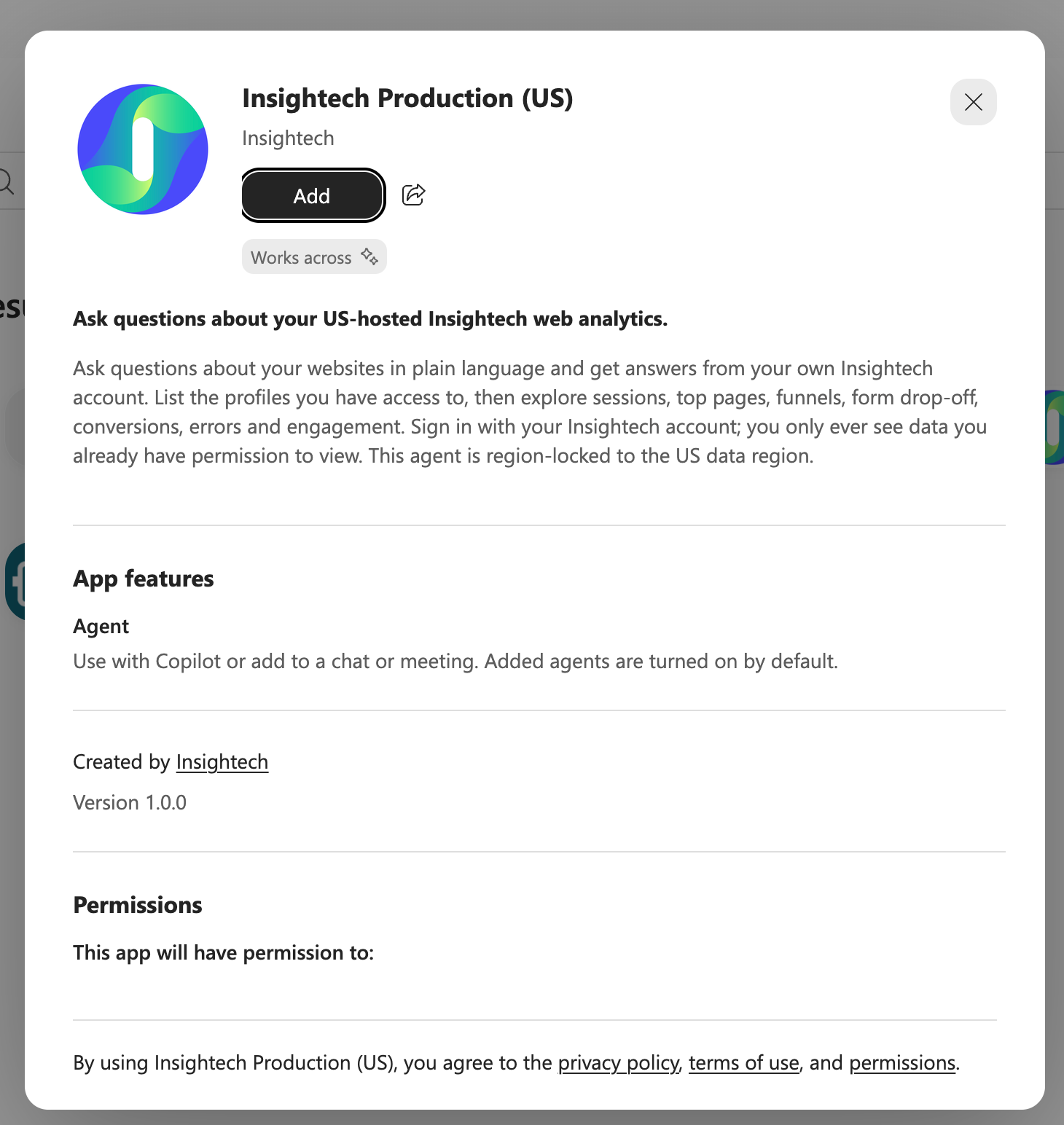
https://marketplace.microsoft.com/en-us/product/office/WA200011976
Step 3 - Authenticate your account
- Click on your new Insightech Insightech agent and ask it a question.
- The agent will prompt you to sign in — click Sign in to Insightech.
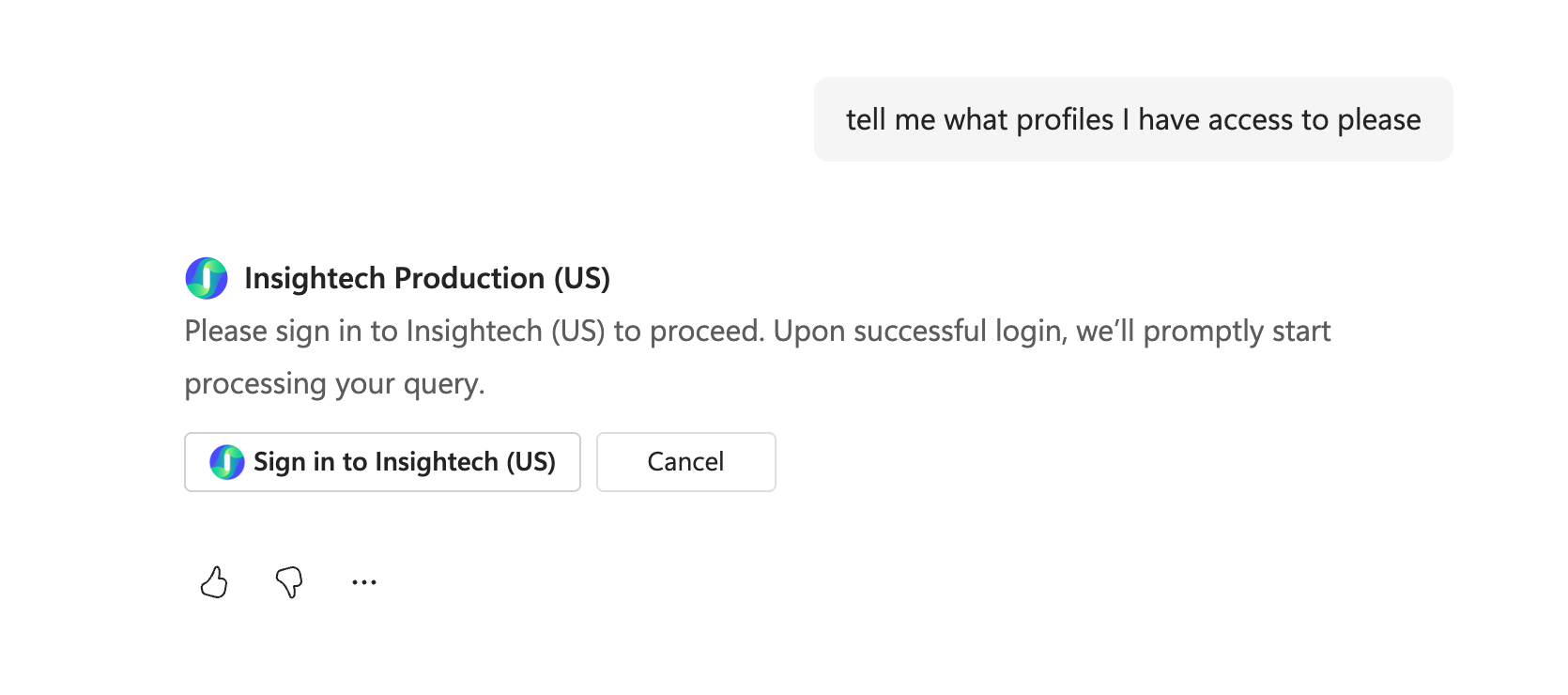
- Click Allow to approve the agent's access to your Insightech data.
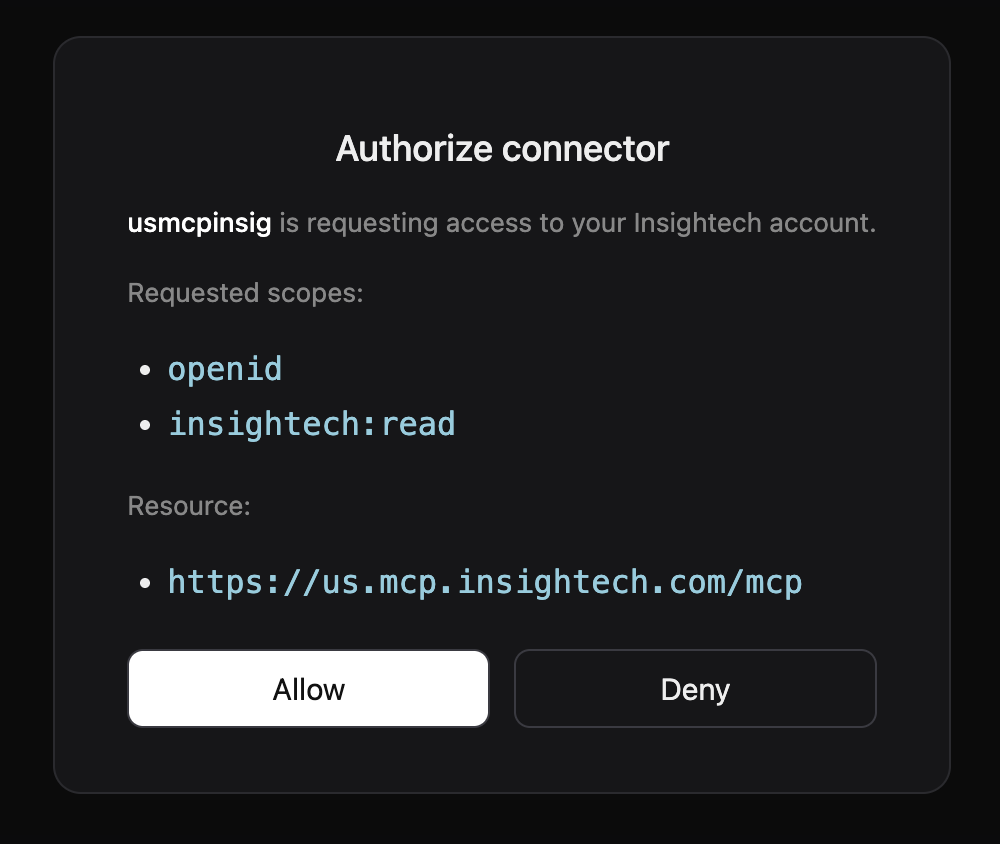
- Confirm it worked by asking: "What profiles do I have access to?" You should see an overview of your account and what you can query.
How To Know When To Contact Your Admin?
By default, Microsoft 365 accounts can add marketplace agents like Insightech without any admin involvement. If that's true for your organization, you won't need to complete these steps and can skip them entirely.
Here are some scenarios you might see if you don't have access:
What You Might See | What It Means |
Searching "Insightech" in More Agents returns nothing | This means Agent access is restricted org-wide |
When you click to Add the agent, you see "You don't have permissions to add this agent" | This means Third-party agent access is off for your account or group |
The Add button is greyed out or missing | This means Third-party agent access is off for your account or group |
None of these are specific to Insightech. They mean your IT team has tightened third-party app/agent access generally, and you will need to speak them to enable it.
Admin Steps - To Enable Insightech in Copilot
- Sign in to admin.microsoft.com.
- Go to Agents → Settings → Allowed agent types and confirm Third-party / Marketplace agents is turned on.
- Go to Agents → Settings → User access and confirm it's set to All users, or that your team's group is included under Specific users/groups.
The Insightech agent doesn't need individual approval — it's already reviewed and certified by Microsoft as part of the commercial marketplace listing. This setting applies to all third-party agents, not just Insightech.
Your users will still need their own Insightech account with existing access to the profiles they want to query — enabling the agent doesn't grant any new data access.
Troubleshooting
Symptom | Most likely cause and fix |
Agent doesn't appear in More Agents, or Add is greyed out | Third-party agent access is restricted — see Step 4 |
Agent added, but says you're not signed in / tool unavailable | You haven't authenticated yet — ask the agent a question and click Sign in to Insightech when prompted |
"No results" or missing profiles | Your Insightech account may not have access to those profiles, or you added the agent for the wrong data region |
Agent stops responding after a period of inactivity | Ask it a question again — you may be prompted to re-authenticate |
Can't sign in to Insightech | Confirm your Insightech account has a verified email address, and that you can sign in to the Insightech web UI directly first |
If a problem persists, contact your Insightech representative with the region you configured, which step failed, and the approximate time of the failure.
Security & Privacy
Your questions are processed by Microsoft Copilot, which calls the Insightech agent to retrieve analytics data. Insightech never receives your Microsoft credentials. Each user authenticates individually with their own Insightech account, and Insightech authorizes every request against that specific user's permissions — connecting the agent grants no additional access beyond what your account already has.
→ Full detail in Security & Privacy.
What You Can Ask About
Once connected, see the Usage & Key Concepts Guide for the full range of what you can ask — this guide covers connection only.
Getting Additional Help
Contact your Insightech representative or support@insightech.com. Useful detail to include: the data region you configured, which step failed, the exact error text, and the approximate time of the failure.