How To Setup - Claude MCP Connection
 Updated
by Josh Gray
Updated
by Josh Gray
This article runs through how to add Insightech as a custom connector in Claude, so you can ask questions about your website analytics in plain language - sessions, conversions, page and form performance, errors, user journeys - directly from a conversation.
Who this guide is for: every step below is done by the individual user — there's no separate organization-wide setup for this connector in Claude. If your workspace has an admin who manages which connectors are allowed, and you don't see the option to add a custom connector, check with them before troubleshooting further.
Time required: about 5 minutes, and it's a one-time setup per data region.
Before You Begin
Requirement | Detail |
Claude account | Custom connectors must be available on your plan |
Insightech account | You'll sign in with your own Insightech login. You'll see only the profiles your account already has access to |
Data region | You'll need to know whether your Insightech data is hosted in the US or Australia — see Step 1 |
No access to Insightech's systems is required, and Insightech needs no access to your Claude account.
Your Connection Details
Region | Name | Remote MCP server URL |
United States |
|
|
Australia |
|
|
Leave the OAuth Client ID and OAuth Client Secret fields under Advanced settings blank — these aren't needed.
One connector per region. If you access profiles hosted in more than one region, add a connector for each — repeat Steps 2 and 3 once per region.
Steps To Add Your Connector
- Find your Data Region
In Insightech, go to Settings → Profile → Data location to see whether your data is stored in US or AU servers. This determines which connector you set up below. - Add Your Custom Connector
In Claude, go to Settings → Connectors, then click + Add → Add custom connector.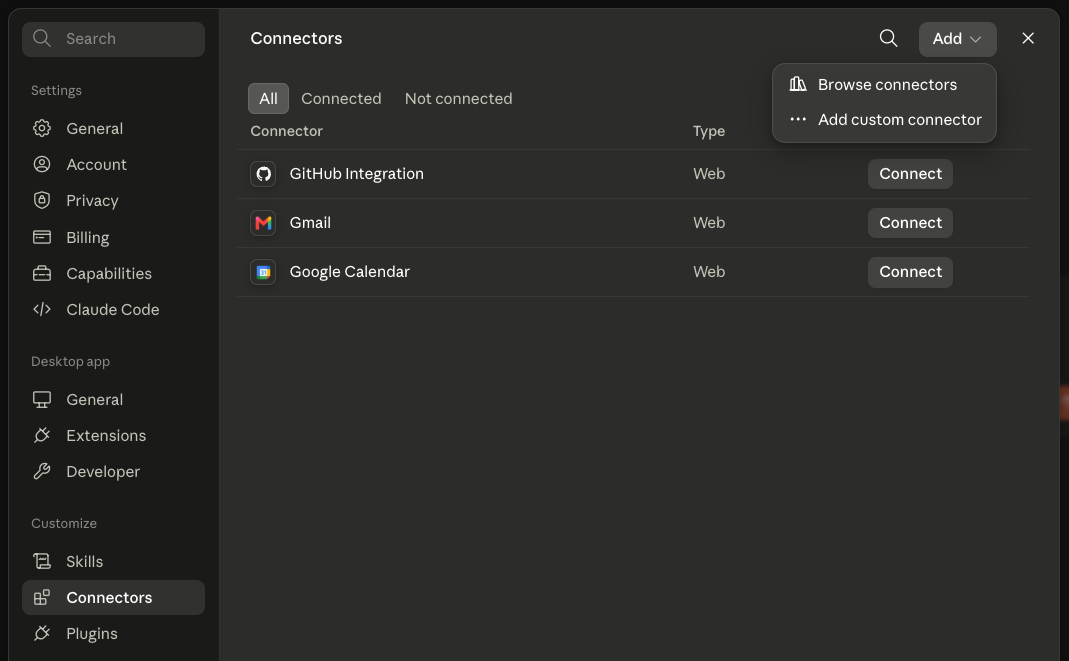
- Enter the Name and Remote MCP server URL for your region, from the table above.
- For Insightech Profiles using the Cloud (US) Servers
Name: Insightech-prod-us
Remote MCP Server URL: https://us.mcp.insightech.com/mcp - For Insightech Profiles using the Australian (AU) servers:
Name: Insightech-prod-au
Remote MCP Server URL: https://insightech-mcp-au-dghwanhpmq-ts.a.run.app/mcp
- For Insightech Profiles using the Cloud (US) Servers
- Leave OAuth Client ID and OAuth Client Secret blank. These aren't needed.
Your settings should look like this: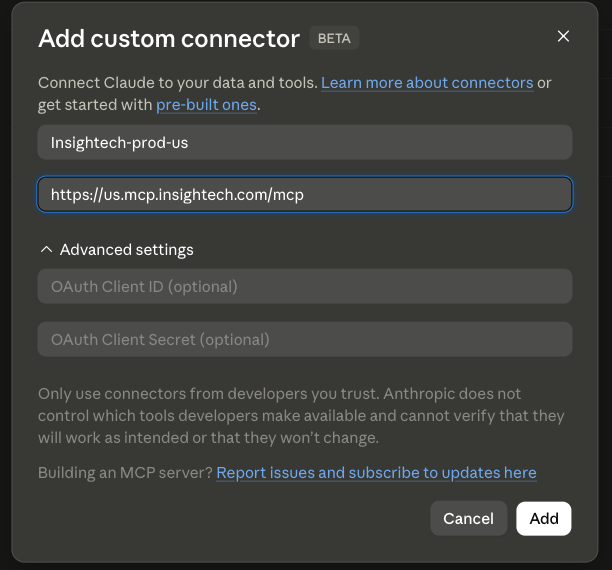
- Click Add to finalise your custom connector setup.
Your custom connector is now set up and ready to authorize.
Authorizing Access
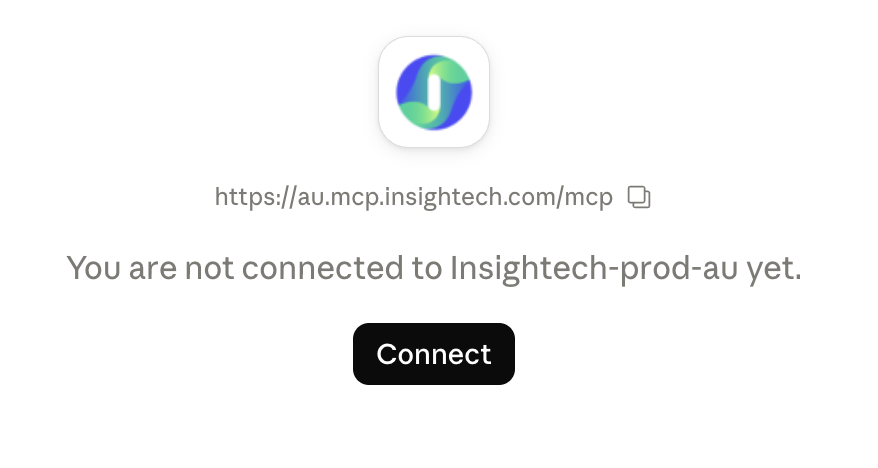
- Click Connect on your new connector to start authorization.
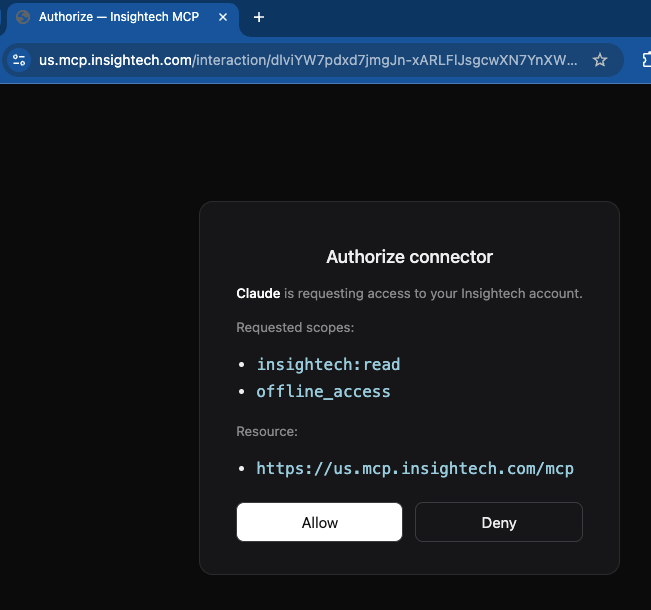
- Click Allow, then follow the prompt back to Claude (or click Open desktop app if you're using the desktop app).
- Back in your Connectors list, the connector now shows a checkmark, confirming it's connected.
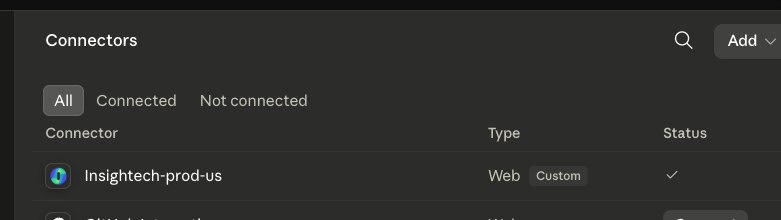
Claude can now use the Insightech connector in any conversation.
Authorizing Insightech In Claude
The first time Claude tries to use each capability, it will ask your permission. Selecting Always allow skips that request going forward for that specific capability.
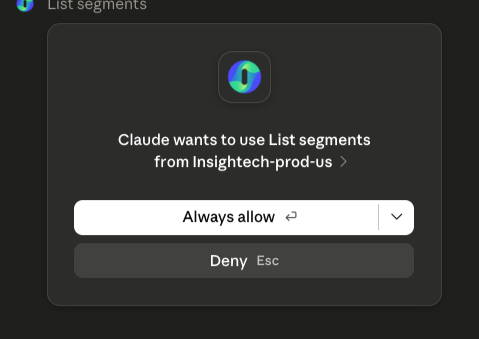
To allow everything at once instead of one-by-one:
- Go to Connectors → [your connector] → Tool permissions.
- Change tool permissions to allow all.
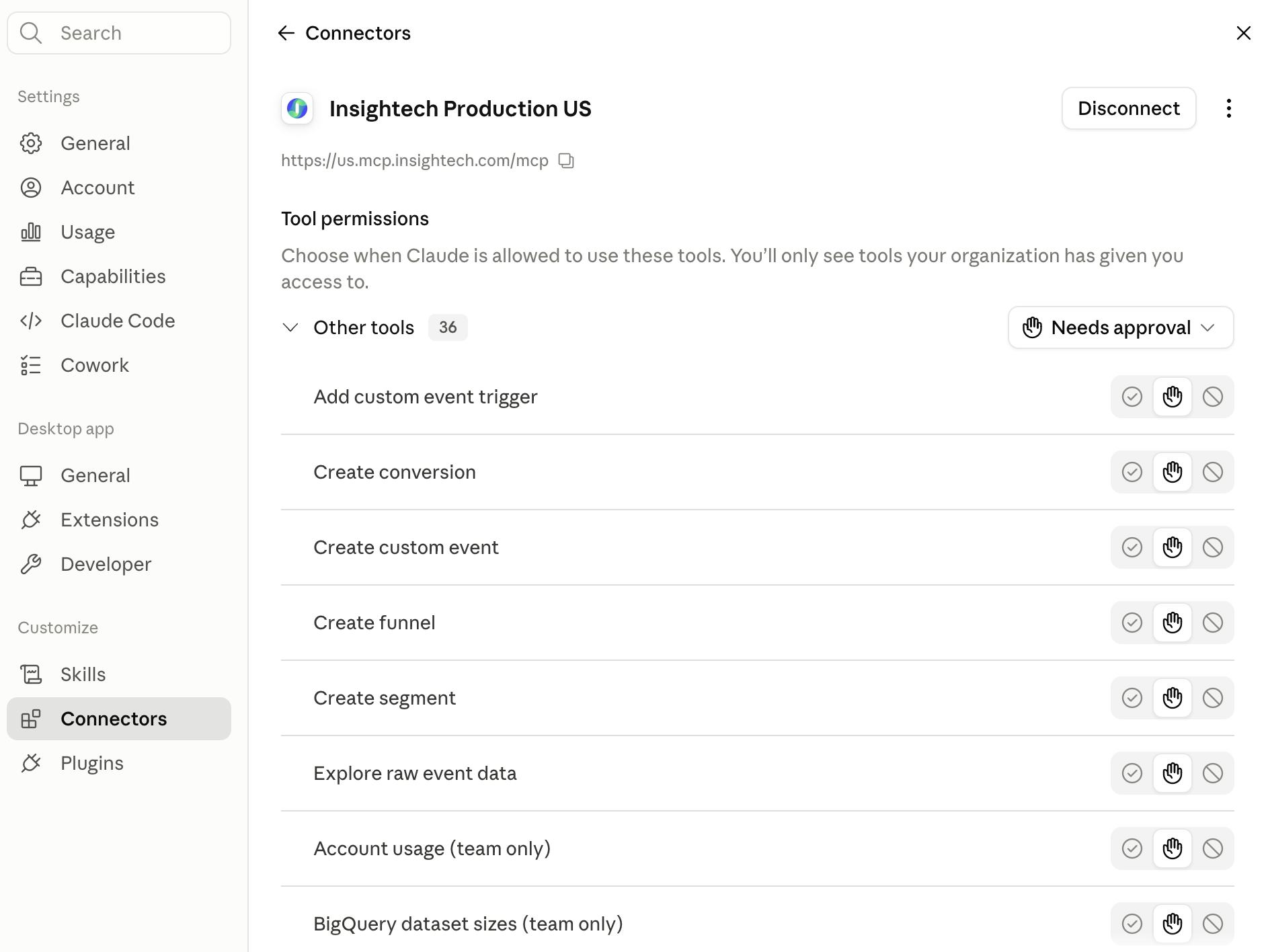
Once you have enabled these, you will be ready to start prompting, and asking Claude questions using your Insightech data.
Troubleshooting
Symptom | Most likely cause and fix |
Connector added, but Claude says the tool is unavailable | You haven't completed authorization yet — click Connect on the connector and go through Allow |
Claude keeps re-asking permission for the same capability | Use Always allow when prompted, or set tool permissions to allow all |
"No results" or missing profiles | Your Insightech account may not have access to those profiles, or you connected the wrong region — check Step 1 |
Custom connector option isn't available | Check with your Claude workspace admin — some organizations restrict which connectors can be added |
Can't sign in to Insightech | Confirm your Insightech account has a verified email, and that you can sign in to the Insightech web UI directly first |
If a problem persists, contact your Insightech representative or support@insightech.com with the region you configured and the approximate time of the failure.
Security & Privacy
Each user authenticates individually with their own Insightech account — no shared credential, and Insightech never receives your Claude login. Access tokens are scoped to whatever profiles your account already has, and can be revoked at any time.
→ Full detail in Security & Privacy.
What You Can Ask About
Once connected, see the Usage & Key Concepts Guide for the full range of what you can ask — this guide covers connection only.
Getting More Help
Contact your Insightech representative or support@insightech.com. Useful detail to include: the data region you configured, which step failed, and the approximate time of the failure.