How To Setup - OpenAI (ChatGPT) MCP Connection
 Updated
by Josh Gray
Updated
by Josh Gray
This article runs through how to add Insightech as a custom connector in ChatGPT, so your team can ask questions about your website analytics in plain language — sessions, conversions, page and form performance, errors, user journeys — directly from a conversation.
Who Is This Guide For
Every step below can be done by an individual user. If your organization is on ChatGPT Business, Enterprise, or Edu, your admin may choose to add this once as a shared workspace connector instead — check with them first if you don't see the option to add a custom connector yourself.
Time required: about 5 minutes, and it's a one-time setup per data region.
Before You begin
No access to Insightech's systems is required, and Insightech needs no access to your ChatGPT account.
Requirement | Detail |
ChatGPT plan | Business, Enterprise, or Edu (your admin can add this once for the whole workspace), or Plus/Pro on a personal account (each user enables it individually). Free ChatGPT doesn't support custom connectors |
Insightech account | You'll sign in with your own Insightech login. You'll see only the profiles your account already has access to |
Data region | You'll need to know whether your Insightech data is hosted in the US or Australia — see Step 1 |
Your Connection Details
Region | Name | MCP server URL |
United States |
|
|
Australia |
|
|
Auth: OAuth — you'll authorize by signing in with your own Insightech account.
One connector per region. If you access profiles hosted in more than one region, add a connector for each, using the matching URL above.
Method 1 (Personal ChatGPT) - Set Up Your Personal MCP Connection
Step 1 - Find your data region
In Insightech, go to Settings → Profile → Data location to see whether your data is stored in US or AU servers. This determines which server URL you use below.
Step 2 - Turn On Developer Mode
In ChatGPT, go to Settings → Security and login → Developer mode, and turn it ON.
You'll see a message about "unverified connectors" or "elevated risk" - this a standard notification that appears for any custom connector, and is not something specific to Insightech.
Step 3 — Add your custom connector
- Go to Settings → Plugins (or the Plugins sidebar item), then Create / Add custom connector.
- Enter these details:
- Name:
Insightech - MCP Server URL: the URL for your region, from the table above
- Auth: select OAuth, then authorize — you'll sign in with your own Insightech account
- Name:
- Click Add to finish.
Step 4 — Confirm it's working
Ask ChatGPT something that needs Insightech, for example "List my Insightech profiles." The first question you ask will prompt a one-time sign-in.
Method 2 (Business Plans) - Set Up Your Business Plan MCP Connection
On the Business plan, there are two things that need to be completed:
- Admin setup: An admin adds the Insightech MCP once for the whole team via Workspace Settings → Apps.
- Each User's setup: Each user, including the admin, must then go to Settings → Plugins, click Connect, and sign in with their own Insightech account before the app can return any data.
Follow the steps below to complete the Admin Setup
Step 1 - Admin: Turn On Developer Mode (if not already)
In ChatGPT go into Account → Settings → Security and login → Developer mode and toggle developer mode ON.
You will see a standard warning for turning this on, mentioning that "unverified connectors" come with "elevated risk". This is a standard message, and the Insightech MCP is a trusted and secure connection directly to your OpenAI Business Plan account.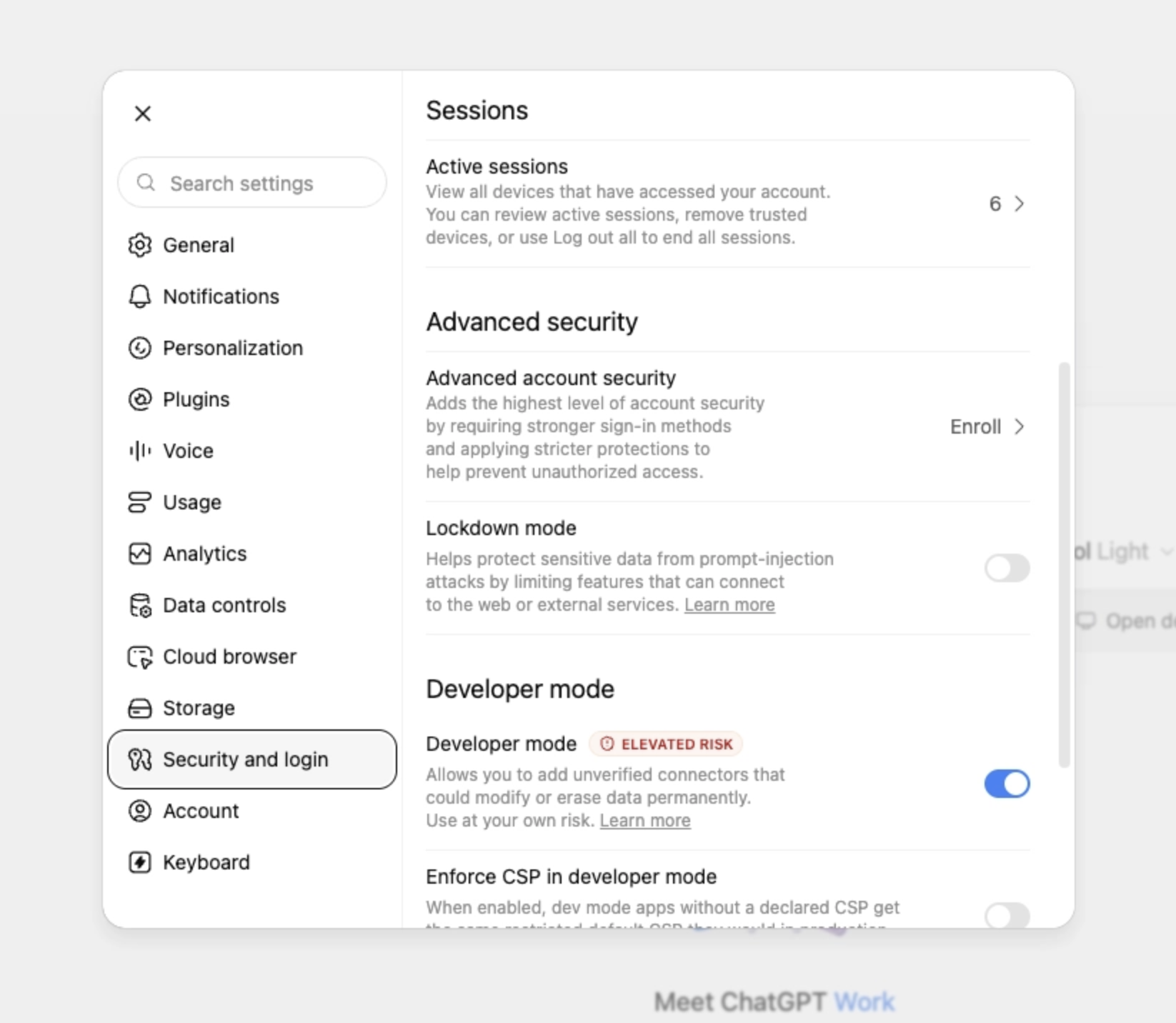
Step 2 - Admin: Add the Insightech MCP app to your workspace
In ChatGPT, go to your account menu and settings to connect your app to your workspace. This is a once off setup that enables the Insightech MCP app for your whole team.
- Account Menu (under left hand nav) → Workspace Settings → Apps → Click "Create" button
- Enter the following details into your New App form
- Name: Insightech MCP
- MCP Server URL: (Check which location your data is, in your Insightech account under Settings --> Profile)
- USA Data Location Endpoint -
https://us.mcp.insightech.com/mcp - AU Data Location Endpoint -
https://insightech-mcp-au-dghwanhpmq-ts.a.run.app/mcp
- USA Data Location Endpoint -
- Auth: Select OAuth. Oath as an authorization method requires you to sign in with your Insightech account via
cloud.insightech.com/mcp-authwhen using your Insightech MCP connection. - Checkbox: Tick "I Understand and want to continue" at the bottom
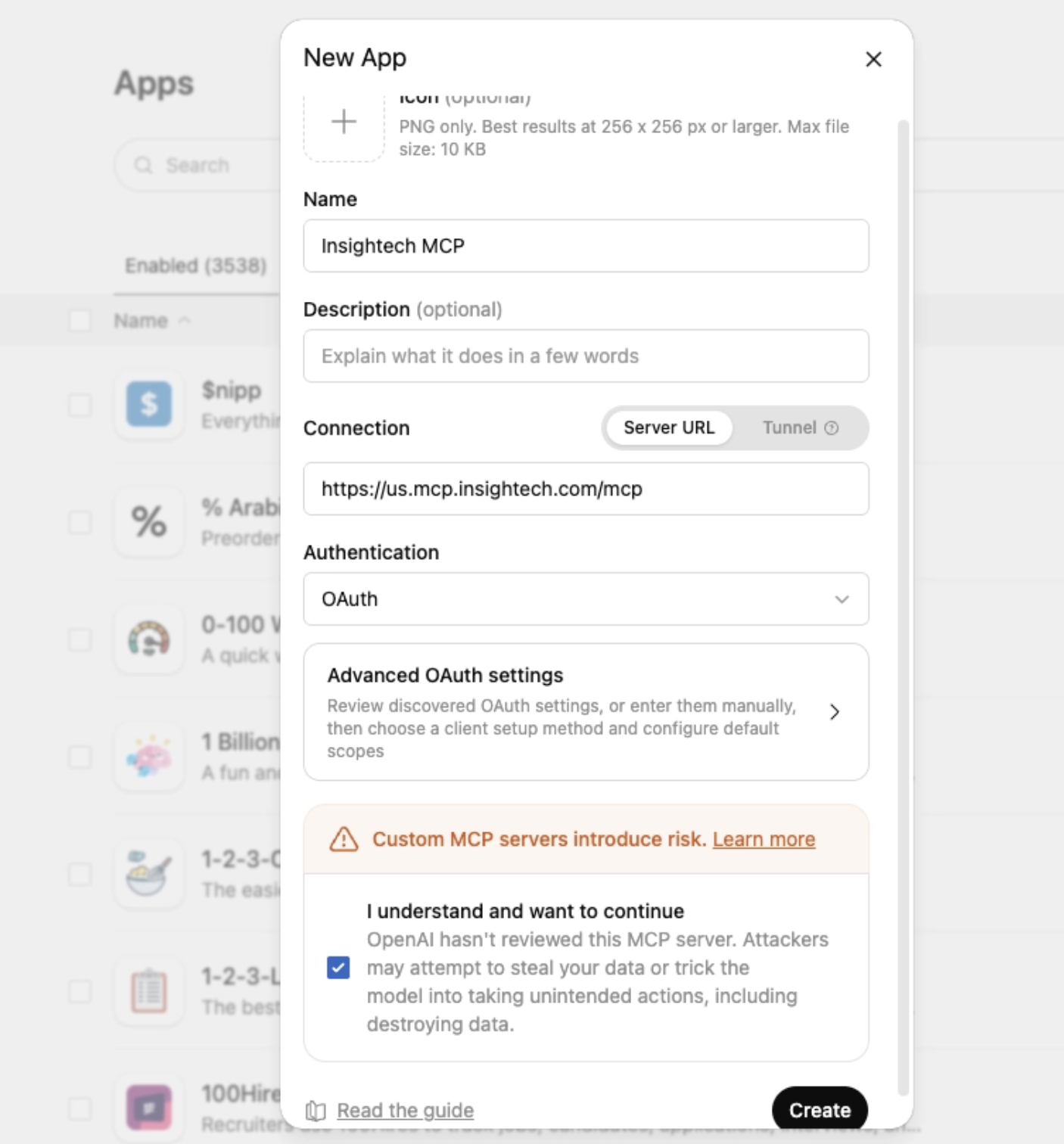
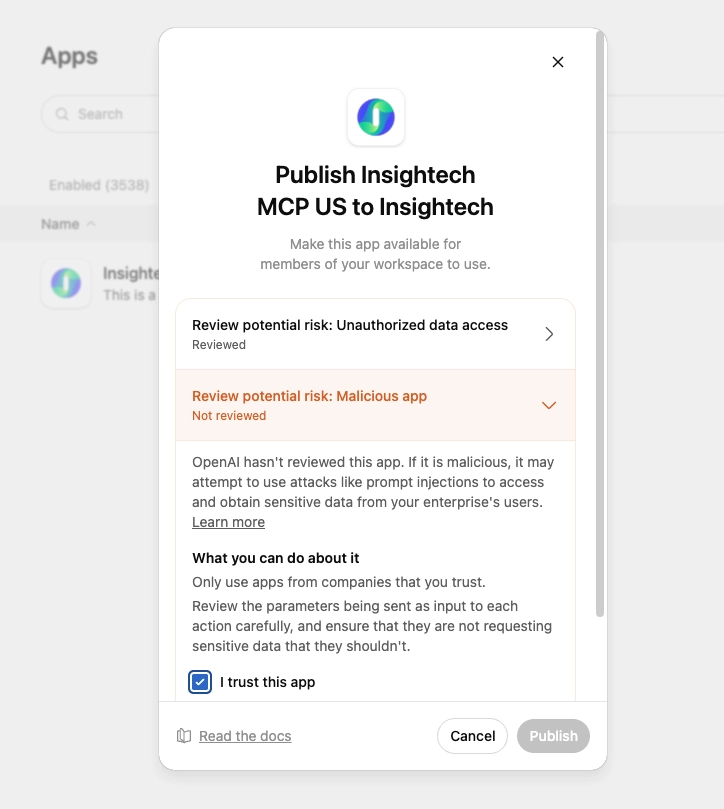
- Click Create --> Publish to enable the app. You will need to check each box saying that you trust the app and are ready to publish it.
Step 3 — Optional : Install and Enable Plugin for All Users
Go into the Insightech Plugin to check that the Installation Policy for the plugin is set to 'Installed'.
To check this you will need to:
- Go to Workspace Settings
- Go to Plugins
- Search for Insightech MCP in the list
- Check that the 'Installation Policy' column says 'Installed'.
- If the prior step shows 'Available', click 'Available' to open the pop up
- Change the toggle from 'Available' to 'Installed'
- Click Update to confirm
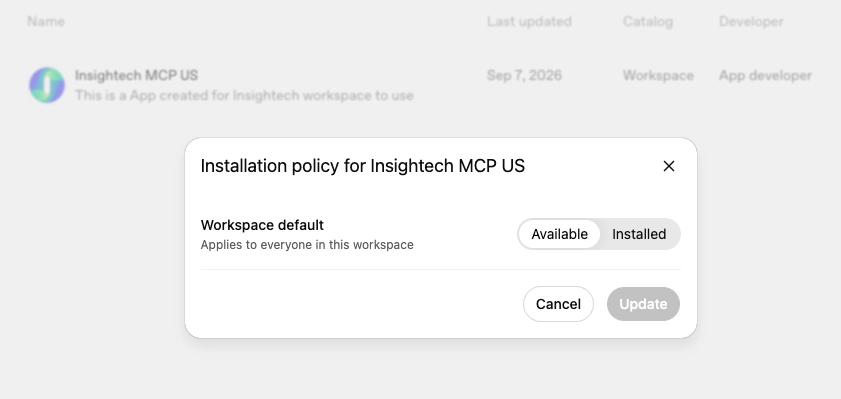
After completing this step, this will pre-install the MCP plugin for all users in your team, and they will now see the plugin within your chat drop-down menu.
Step 4 — All Users: Connect Your Insightech Account
Go into your account settings to add the Insightech app (via Plugins this time), to your personal ChatGPT profile within your team's business account. This will connect the app to your chats and allow it to be used in conversations moving forward.
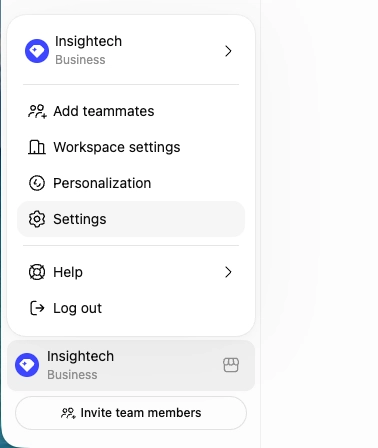
- Go to Account → Settings
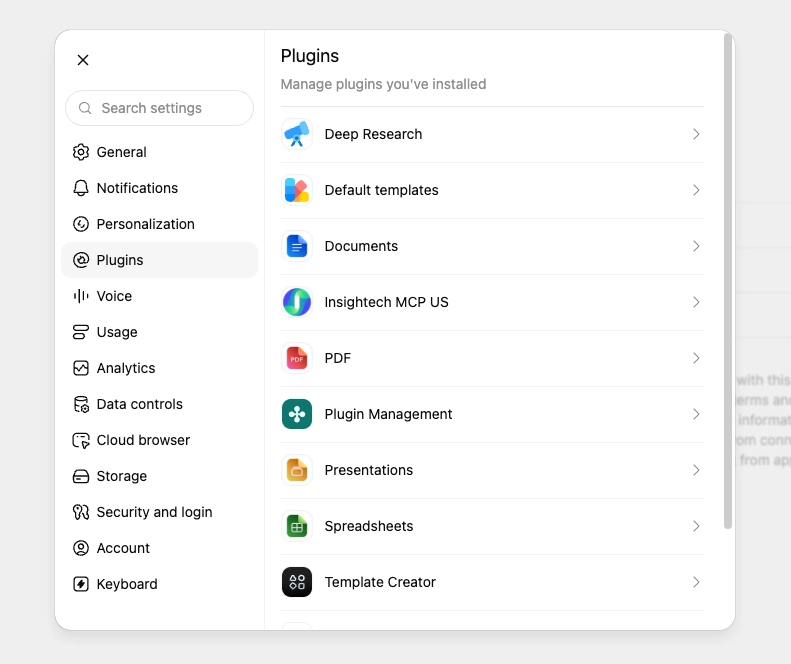
- Go to Plugins → Insightech MCP
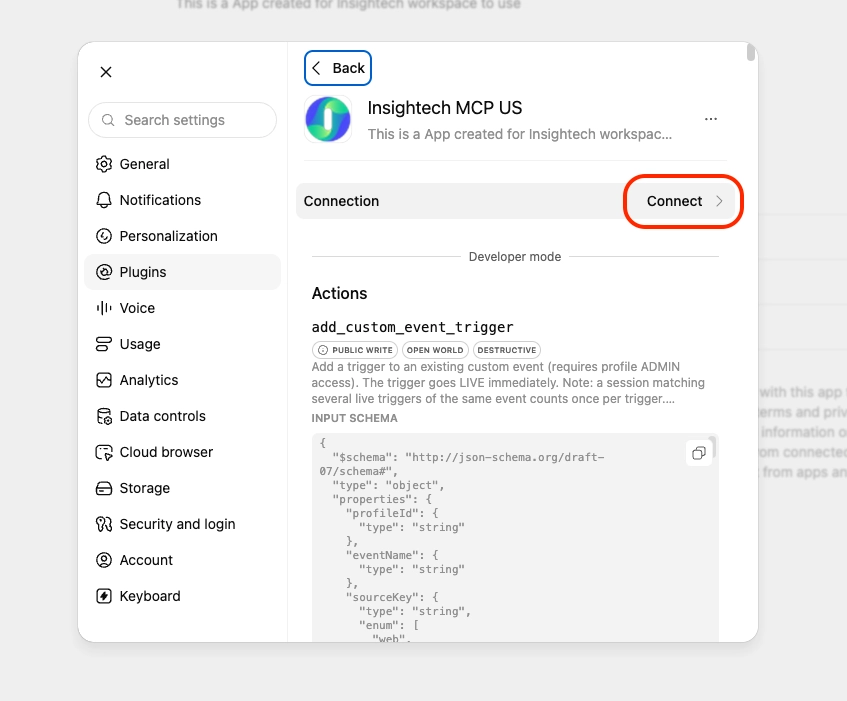
- Click on 'Connect' or 'Reconnect'
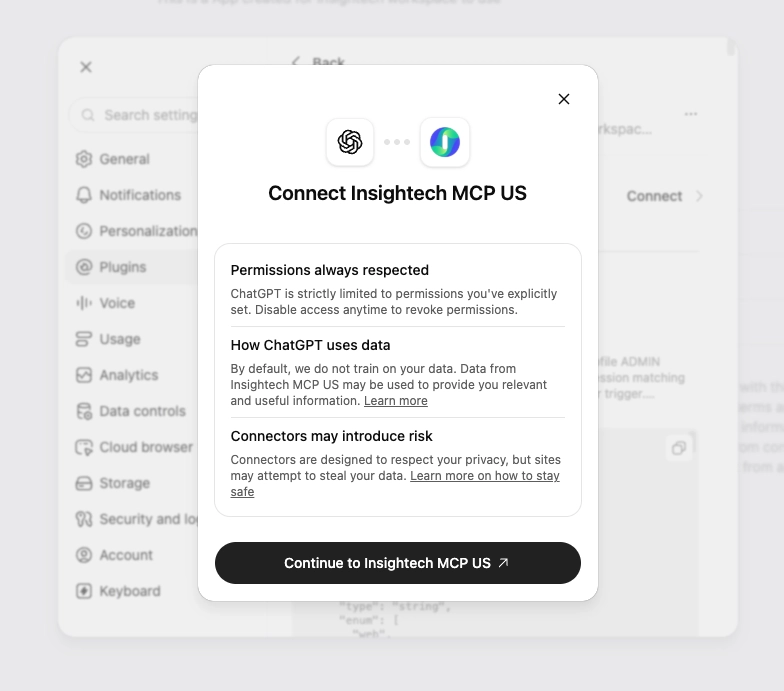
- Click 'Continue to Insightech MCP' to sign in and to finish Authentication.
- Click Add to finish.
Step 5 — Confirm it's working
You should now be able to click the (+) icon for a new chat, and select the Insightech app/plugin within the drop down.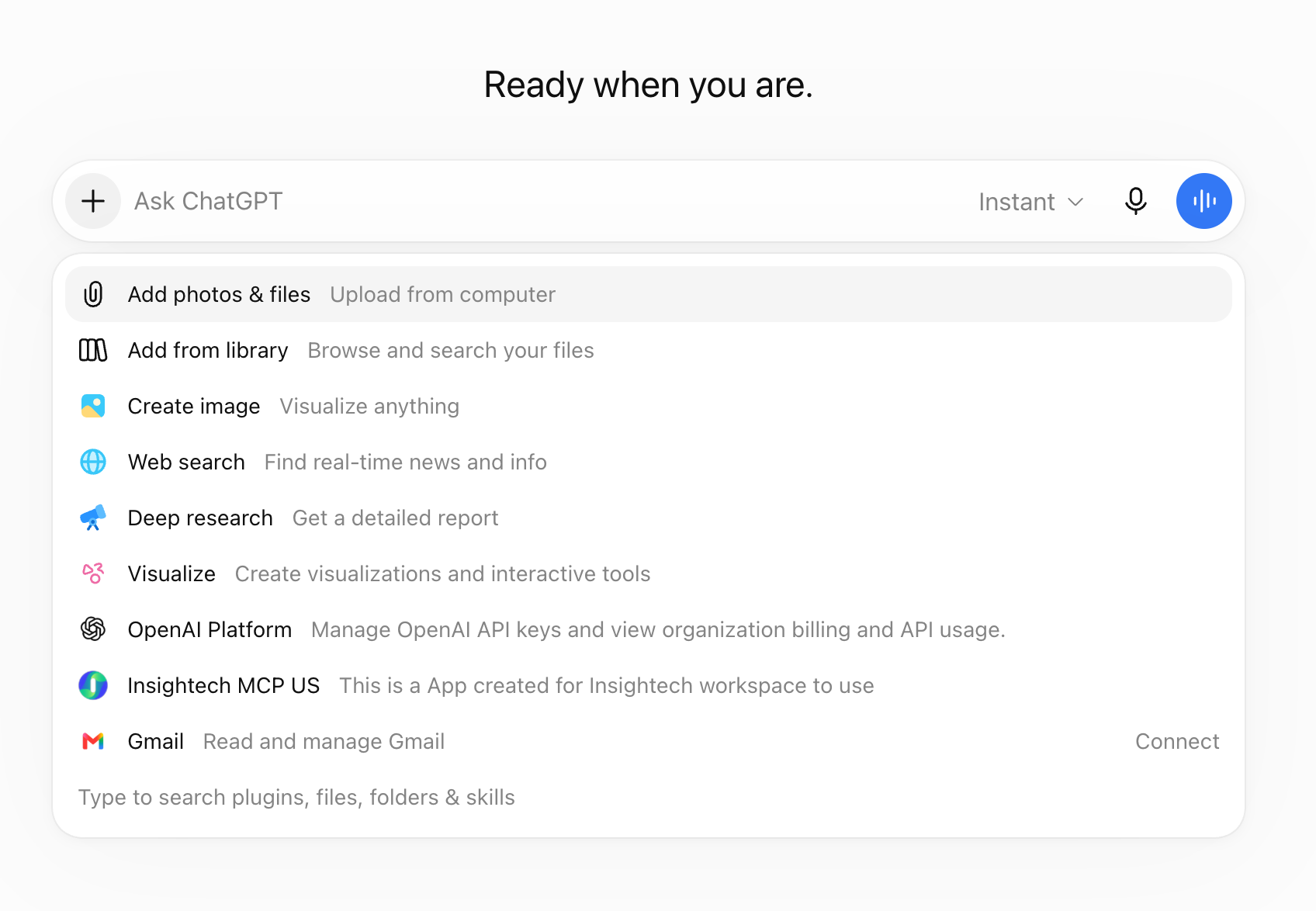
If you do not see Insightech in the plugin list
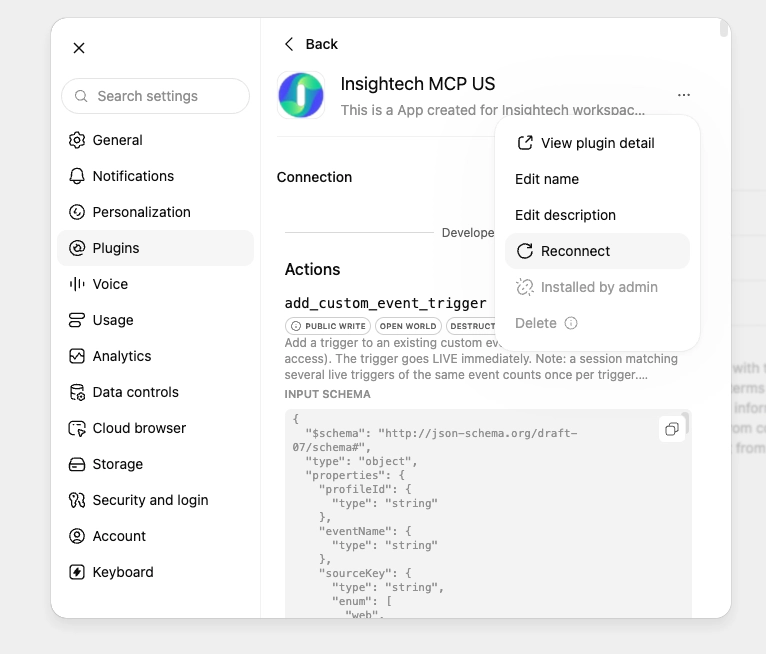
You may need to reconnect or re-enable your plugin.
To do this, go to Settings → Plugins → Insightech MCP → Click 'Connect' / 'Reconnect'
If you don't see Insightech Under Settings → Plugins
Your workspace admin has likely enabled the Insightech as 'Available' but needs to make sure that it is set to 'Installed'. This simply changes where the Insightech plugin is shown within your profile.
You can choose between the 2 options below to make it available for your personal profile.
- Option 1 (as a user)
As a user, you can go into Settings → Plugins → Search for 'Insightech MCP' to find the plugin and click the (+) icon to Add the insightech Plugin. - Option 2 (admin task)
Ask your Admin to go into the Insightech Plugin to check that the Installation Policy for the plugin is set to 'Installed'. To check this your admin can- Go to Workspace Settings
- Go to Plugins
- Search for Insightech MCP in the list
- Check that the 'Installation Policy' column says 'Installed'.
- If the prior step shows 'Available', click 'Available' to open the pop up
- Change the toggle from 'Available' to 'Installed'
- Click Update to confirm
After completing option 2, this will pre-install the MCP plugin for all users in your team, and you will see it within your chat drop-down menu.
Further Troubleshooting
Symptom | Most likely cause and fix |
ChatGPT warns about an "unverified connector" or "elevated risk" during setup | This is expected for any custom connector and isn't specific to Insightech — it's safe to continue |
Can't find the Plugins option, or no custom connector setting appears | Confirm Developer mode is turned on (Step 2), and that you're not on the Free plan, which doesn't support custom connectors |
"No results" or missing profiles | Your Insightech account may not have access to those profiles, or you connected the wrong region — check Step 1 |
No sign-in prompt appears when you ask a question | Double-check the connector was added successfully in Step 3, and try asking again |
For issues not specific to ChatGPT's setup, see the shared Troubleshooting guide.
Security & Privacy
Each user authenticates individually with their own Insightech account — no shared credential, and Insightech never receives your OpenAI login. Access is scoped to whatever profiles your account already has, and can be revoked at any time.
→ Full detail in Security & Privacy.
What You Can Ask About
Once connected, see the Usage & Key Concepts Guide for the full range of what you can ask — this guide covers connection only.
Getting Help
Contact your Insightech representative or support@insightech.com. Useful detail to include: the data region you configured, which step failed, and the approximate time of the failure.